What you will learn
- Implement Role-Based Access Control (RBAC) to enforce the principle of least privilege.
- Configure the Auditor Skill to monitor for PII leaks and malicious behavior.
- Set up secure, server-to-server OAuth integration for Microsoft Dynamics 365 and SharePoint.
Role-Based Access Control (RBAC)
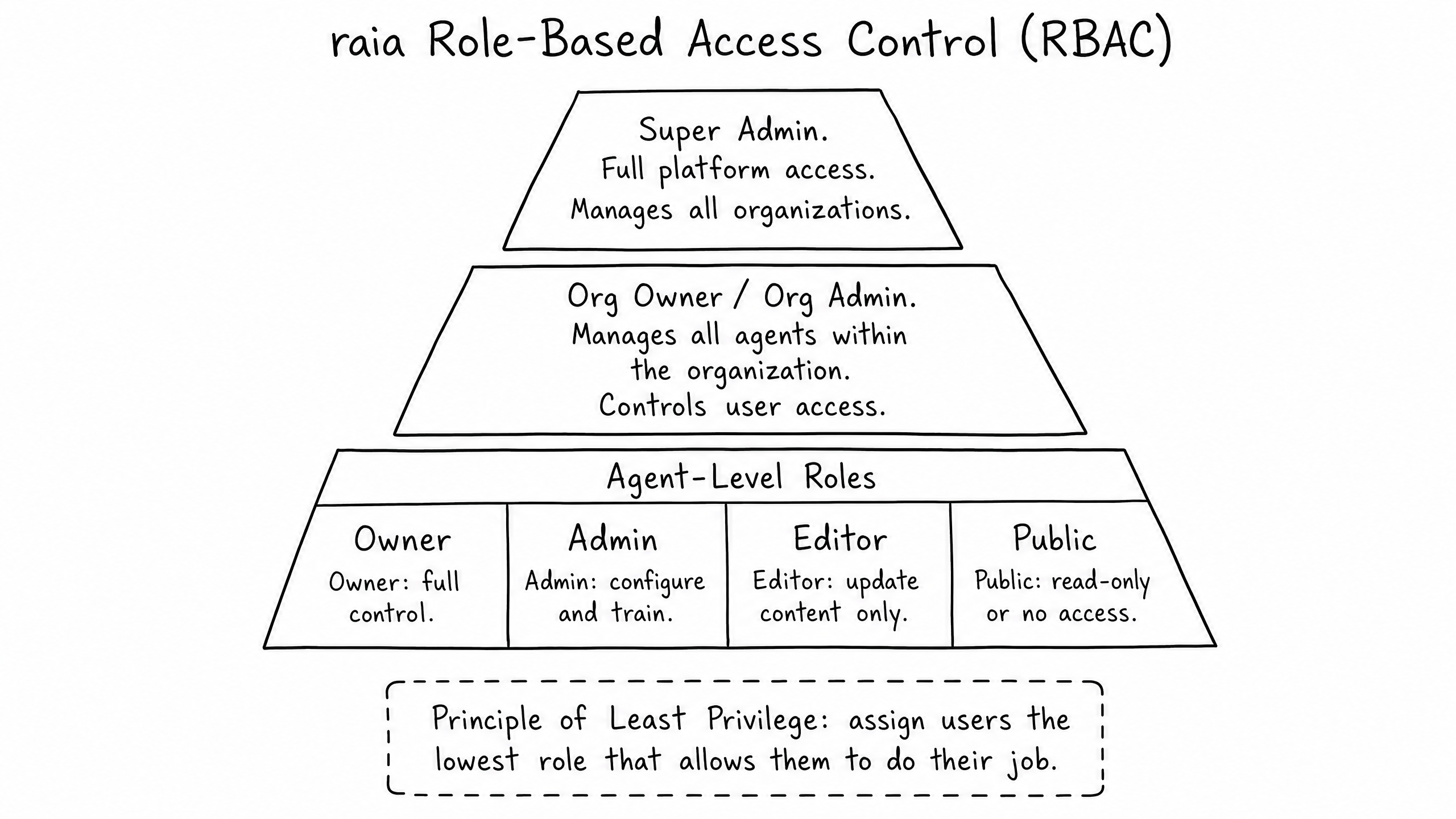
Securing AI agents at scale requires a multi-level access framework. In raia, permissions are divided into organization-level roles and agent-level roles.
Organization Roles
Org Owner
Full control of the organization — agents, users, settings and billing.
Org Admin
Manages all agents and users within a specific organization.
Agent Roles
Owner
Full control over the agent.
Admin
Configure skills, edit instructions, and train the knowledge base.
Editor
Update knowledge base content but cannot change core configurations.
Public
Read-only access or no access.
Best Practice: Always apply the Principle of Least Privilege. If a user only needs to update training documents, assign them the Editor role — not Admin.
The Auditor Skill
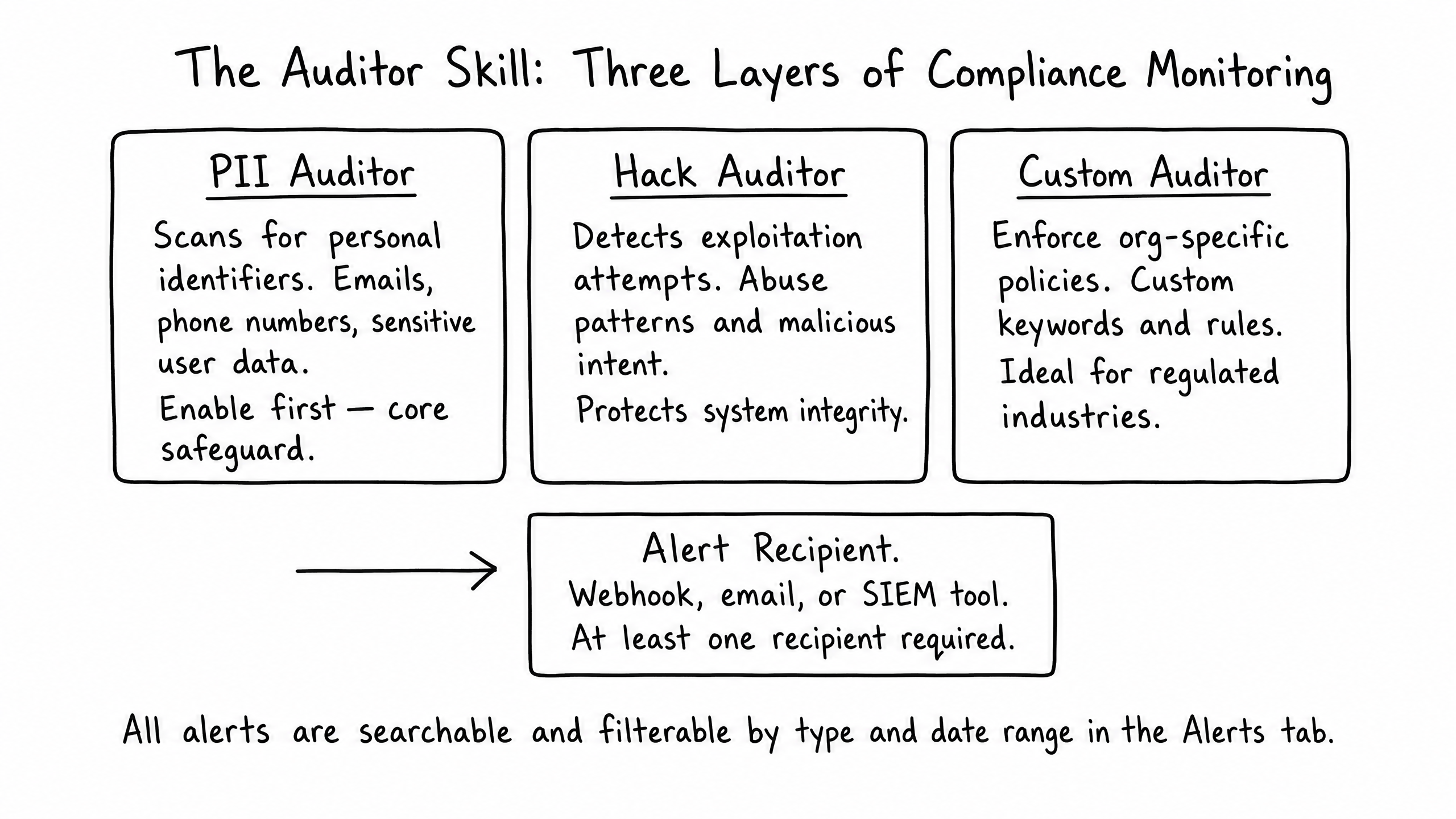
The Auditor Skill acts as an automated compliance layer, scanning every message sent and received by the agent for policy violations.
01
PII Auditor
Scans for Personally Identifiable Information (emails, phone numbers, SSNs). The core safeguard against data leakage — enable this first.
02
Hack Auditor
Detects system abuse, prompt injection attempts, and malicious intent.
03
Custom Auditor
Enforces organization-specific policies (e.g., flag any mention of an unreleased product).
When an auditor triggers, the alert is logged in the Alerts tab and dispatched to the configured Recipient (e.g., a webhook sent to a SIEM tool, Slack channel, or email address).
Enterprise OAuth: Microsoft Integration
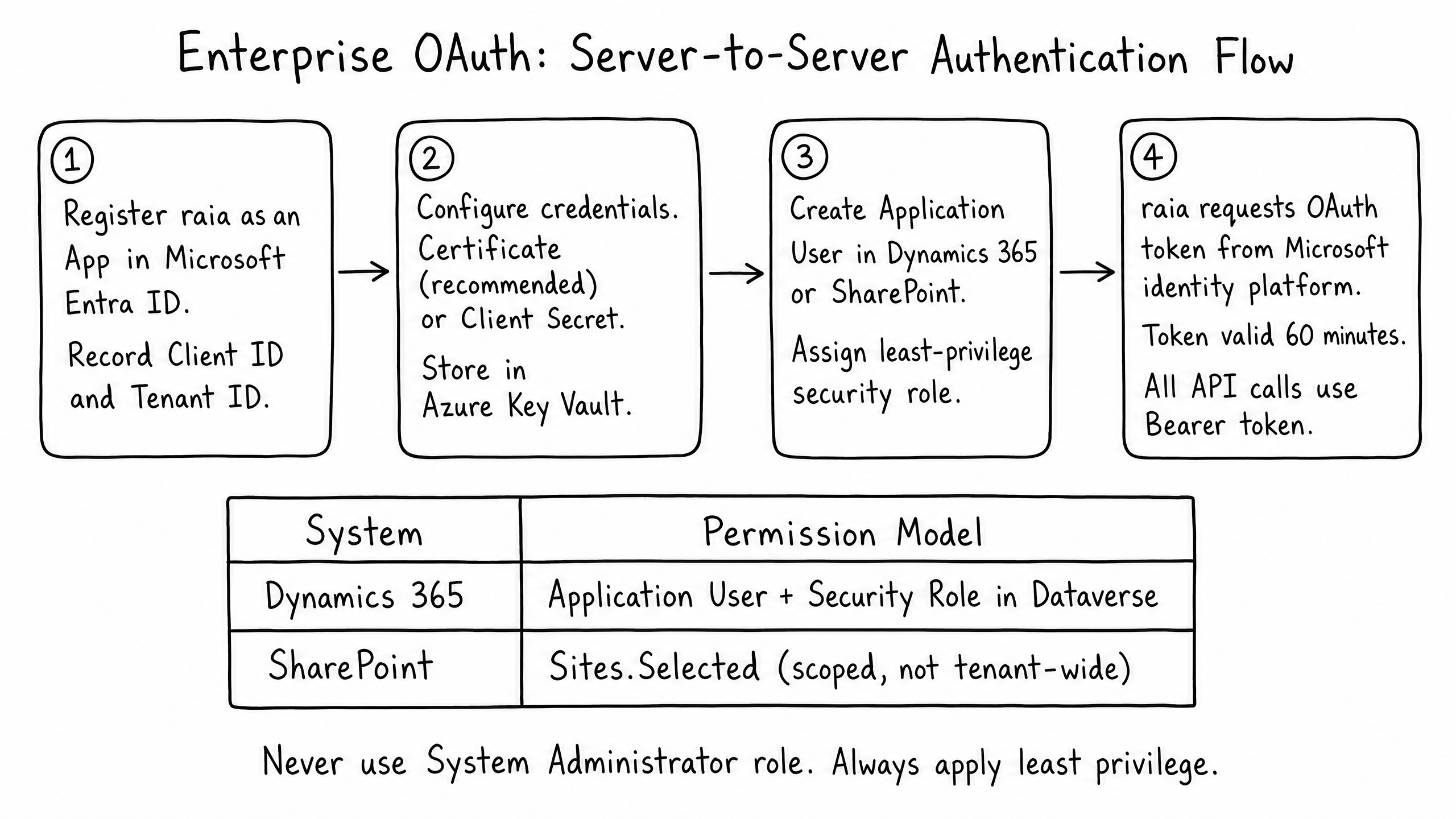
For deep integrations with enterprise systems like Microsoft Dynamics 365 or SharePoint, raia uses the Microsoft Entra ID OAuth 2.0 client credentials flow. This allows raia to authenticate securely as a server (S2S) without requiring an interactive user login.
The 4-Step Setup Flow
- Step 01
Register the App
Register raia as a Single-Tenant application in Microsoft Entra ID. Record the Client ID and Tenant ID.
- Step 02
Configure Credentials
Upload a certificate (recommended) or generate a Client Secret. Store it securely in Azure Key Vault.
- Step 03
Create the Application User
For Dynamics 365: create an Application User in Dataverse with a custom security role (never System Administrator). For SharePoint: grant the Sites.Selected permission in Microsoft Graph to scope access to specific site collections.
- Step 04
Authenticate
raia requests an access token from the Microsoft identity platform. The token is valid for 60 minutes and passed as a Bearer token in all API calls.
Security Note: Never assign the System Administrator role to the Application User. Scope permissions narrowly with custom security roles in Dataverse and Sites.Selected in SharePoint to enforce least privilege at the integration layer.
Frequently Asked Questions
Can I restrict agent access by IP address or domain?
Yes — for private or highly restricted internal agents, configure IP whitelists and domain restrictions to ensure the agent is only accessible from authorized corporate networks.
If the PII Auditor flags a message, is the message blocked from being sent?
The Auditor Skill is primarily a monitoring and alerting tool. Depending on configuration and custom prompt rules, you can instruct the agent to refuse to answer when PII is detected, but the Auditor itself generates alerts for review.
Why use Sites.Selected for SharePoint instead of Files.ReadWrite.All?
Files.ReadWrite.All grants the agent access to every file across the entire Microsoft 365 tenant. Sites.Selected restricts access to only the specific SharePoint sites you explicitly authorize, adhering to strict security compliance.
Path complete
Congratulations — you have completed the Agent Integration path. You now have the knowledge to deploy, connect, and secure raia agents within complex enterprise environments.