What you will learn
- Understand the difference between Copilot and raia Control.
- Navigate the 7-step Mission Launch Wizard.
- Manage the lifecycle of an outbound mission.
- Read and interpret engagement signals to prioritize follow-ups.
Copilot vs. Control
So far, you've seen agents handle inbound conversations — a user comes to your website, opens Live Chat, and the agent responds. You monitor and manage those in Copilot.
raia Control is different. It's an outbound platform. Instead of waiting for users, Control sends your trained agents out to hundreds or thousands of contacts via Email or SMS. In Control, an outbound campaign is called a Mission.
The Mission Launch Wizard
Launching a mission is a guided process. You don't need to be a technical expert to send an agent on a mission.
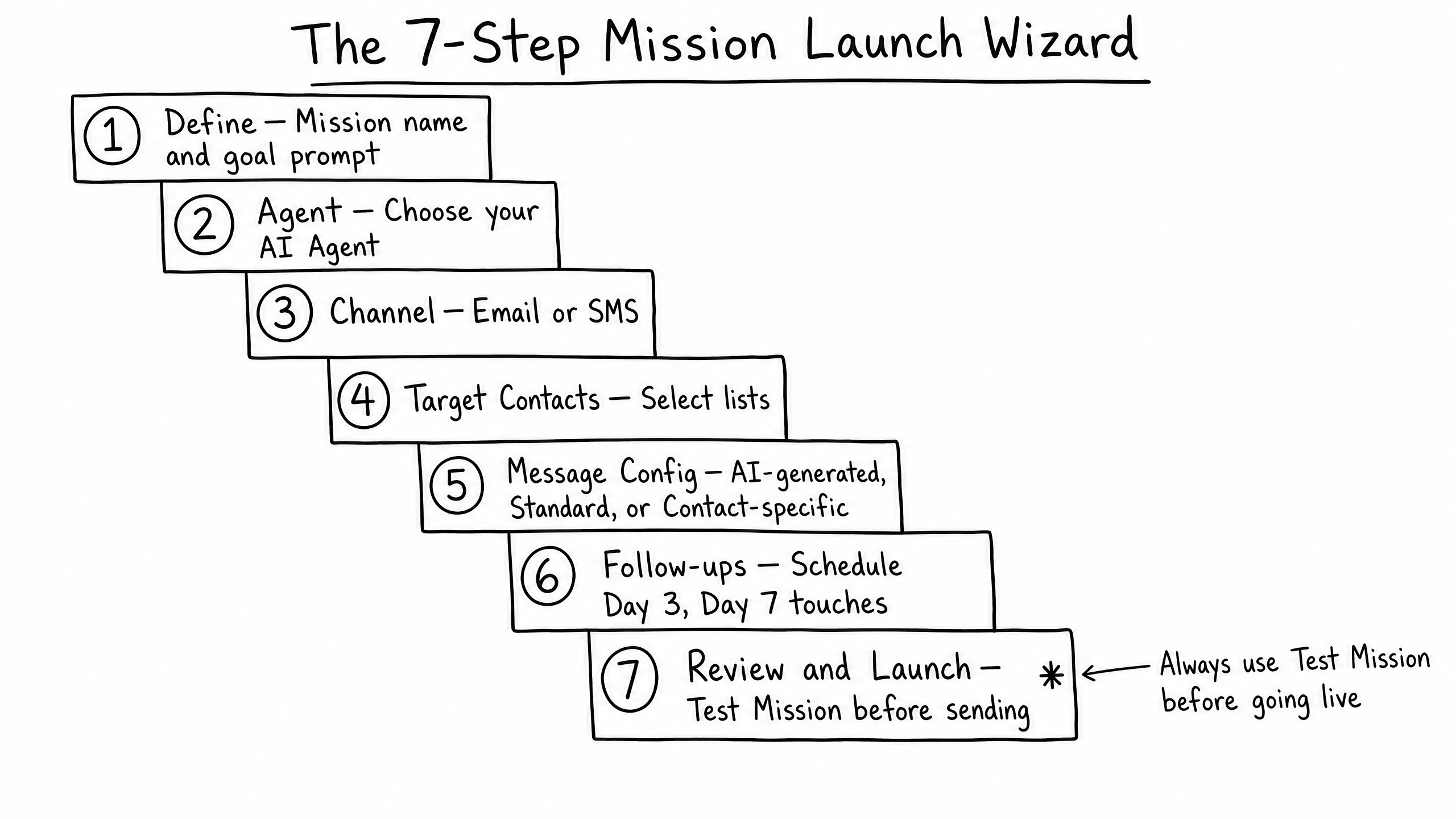
Step 01
Define
Name the mission and write a prompt that tells the agent its goal for this specific campaign.
Step 02
Agent
Select which of your trained agents will handle the outreach.
Step 03
Channel
Choose whether the agent reaches out via Email or SMS.
Step 04
Target Contacts
Pick the contact list the agent should message.
Step 05
Message Config
Choose how the first message is written. AI-Generated is the most powerful — a unique, personalized message per contact.
Step 06
Follow-ups
Schedule automatic touches (e.g., "If they don't reply by Day 3, send a follow-up").
Step 07
Review & Launch
Always click Test Mission first to see exactly what the agent will send before hitting launch.
The Mission Lifecycle
Once a mission is created, it moves through a specific lifecycle. You can track its status from your Command Deck.
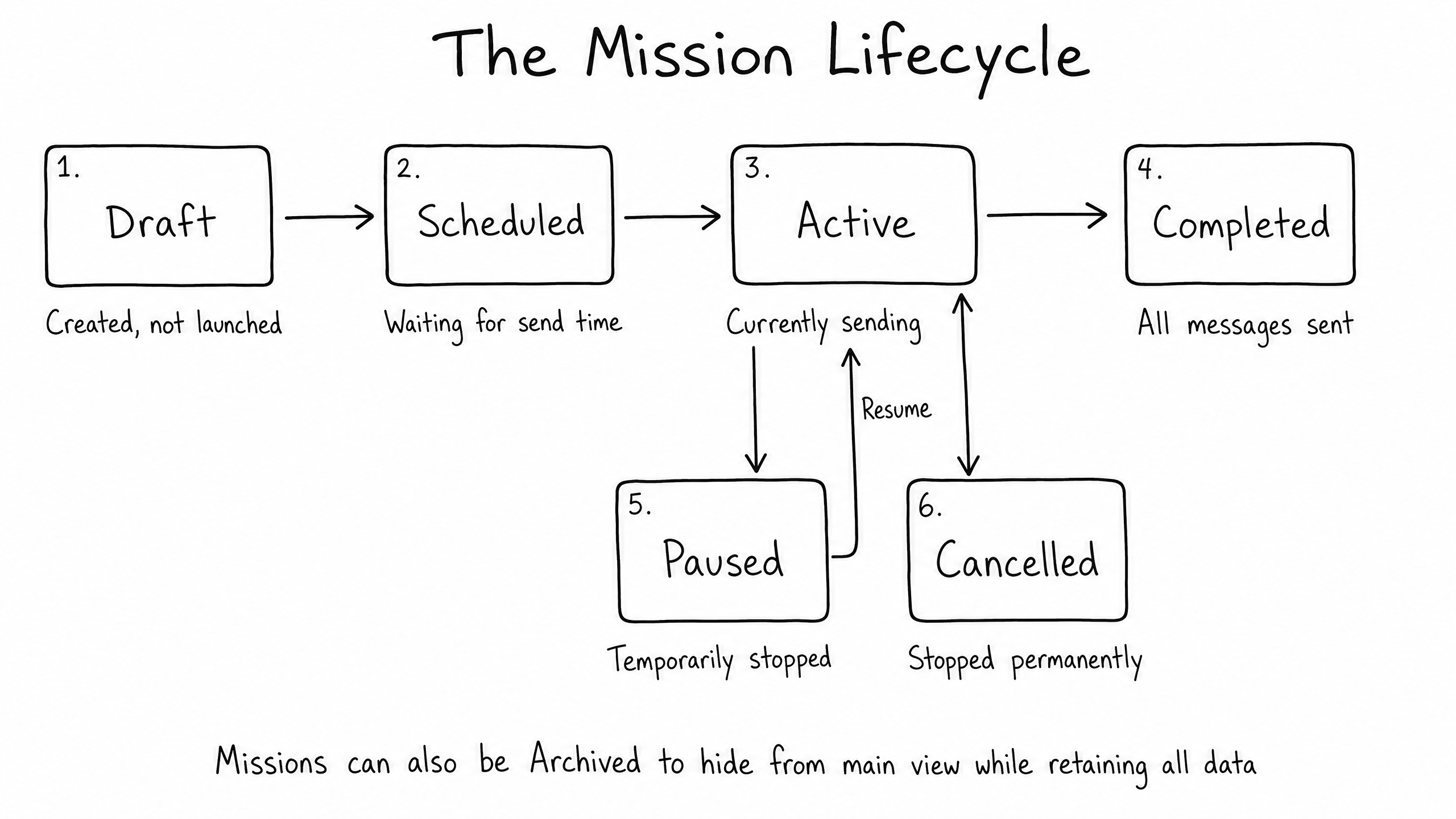
Draft
You've started building the mission but haven't finished the wizard.
Scheduled
Fully built and waiting for its scheduled start time.
Active
The agent is currently generating and sending messages.
Paused
Temporarily stopped. No new messages go out until you Resume.
Completed
All messages and scheduled follow-ups have been sent.
Cancelled
Permanently stopped before finishing.
You can Archive a mission at any time. This hides it from your main view to keep your dashboard clean, but retains all data and conversation history.
Reading Engagement Signals
The goal of a mission isn't just to send messages — it's to start conversations. Control gives you two ways to measure performance.
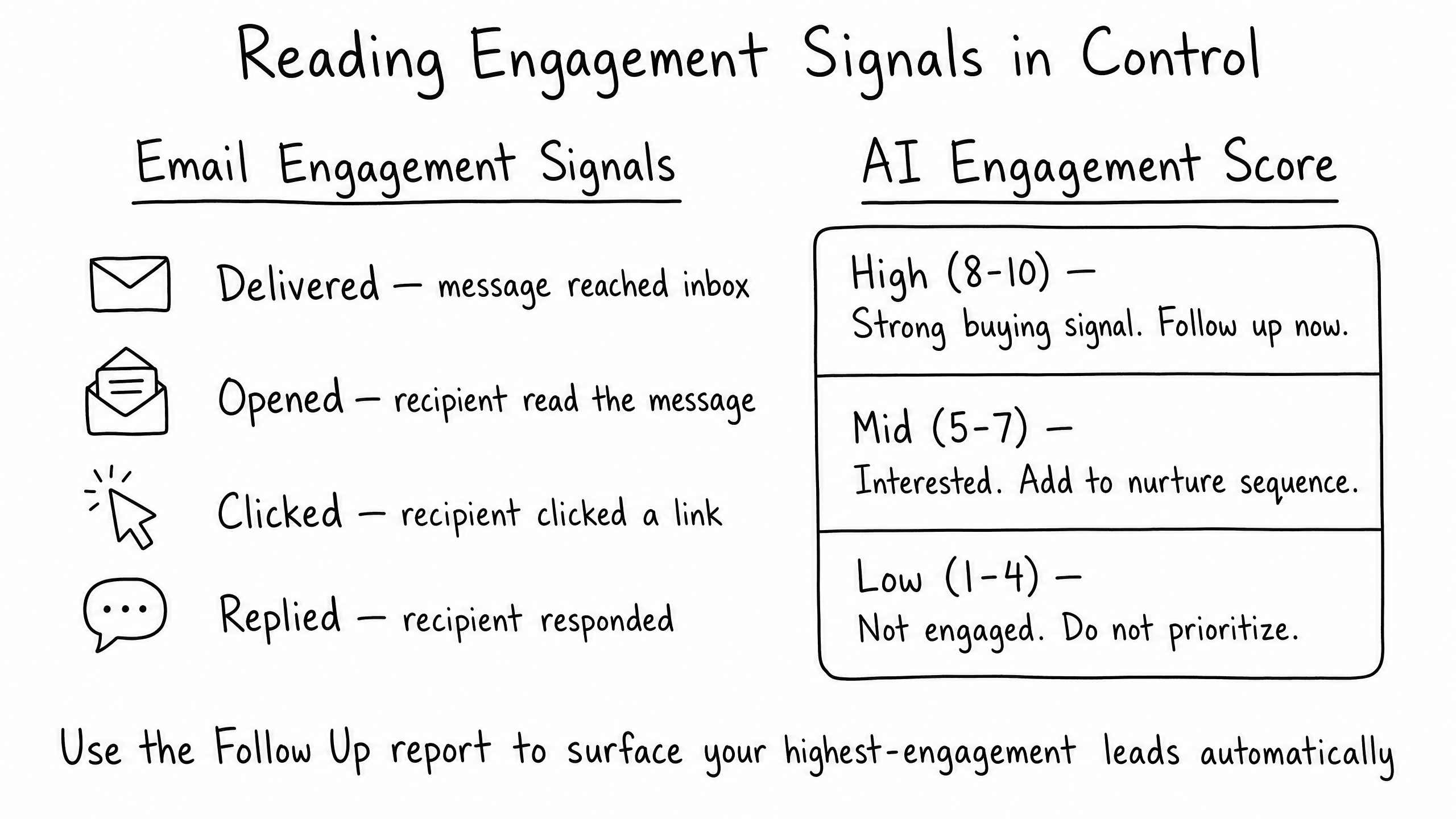
Email Engagement Signals
Control tracks standard email metrics via Mailgun:
Delivered
The message reached the inbox.
Opened
The recipient opened the email.
Clicked
The recipient clicked a link inside the email.
Replied
The recipient wrote back.
AI Engagement Score
Beyond open/click tracking, the Scoring Agent evaluates actual conversation content and assigns an Engagement Score:
High (8–10)
Asking buying questions, requesting a meeting, or showing strong interest. Top priority.
Mid (5–7)
Engaged but not ready to buy. Add to a nurture sequence.
Low (1–4)
Not engaged or asked to be removed. Do not prioritize.
Use the Follow Up Report to automatically surface every contact who replied, opened multiple times, or earned a High Engagement Score.
Frequently Asked Questions
Can I see what the AI-generated message will look like before it sends?
Yes. On the Review step of the wizard, use the Test Mission button. You can also click any contact in the Mission Contacts Status table to preview their specific personalized message before delivery.
How many messages can an agent send per day?
By default, missions are capped at 25 messages per day to protect your sender reputation, with a maximum platform limit of 100 per mission per day. You can adjust these defaults in your Settings.
If a contact replies to an Email mission, does the agent reply back?
Yes, if the agent is configured to handle replies. It will read the contact's response and continue the conversation based on its instructions and knowledge base.
Path complete
You've completed the Agent User path.
You now know how to monitor live conversations in Copilot, train agents using the four types of feedback, and deploy agents proactively using raia Control.