What you will learn
- Provide four different types of feedback on agent responses.
- Understand how your feedback can become training material, depending on the Feedback Skill settings.
- Use the "Include in Training" toggle effectively.
- Understand how the automatic Scoring Skill measures conversation quality.
How to Give Feedback
Training an AI Agent is not a one-time event; it is a continuous process. As an Agent User, your feedback is the primary engine that drives the agent's improvement.
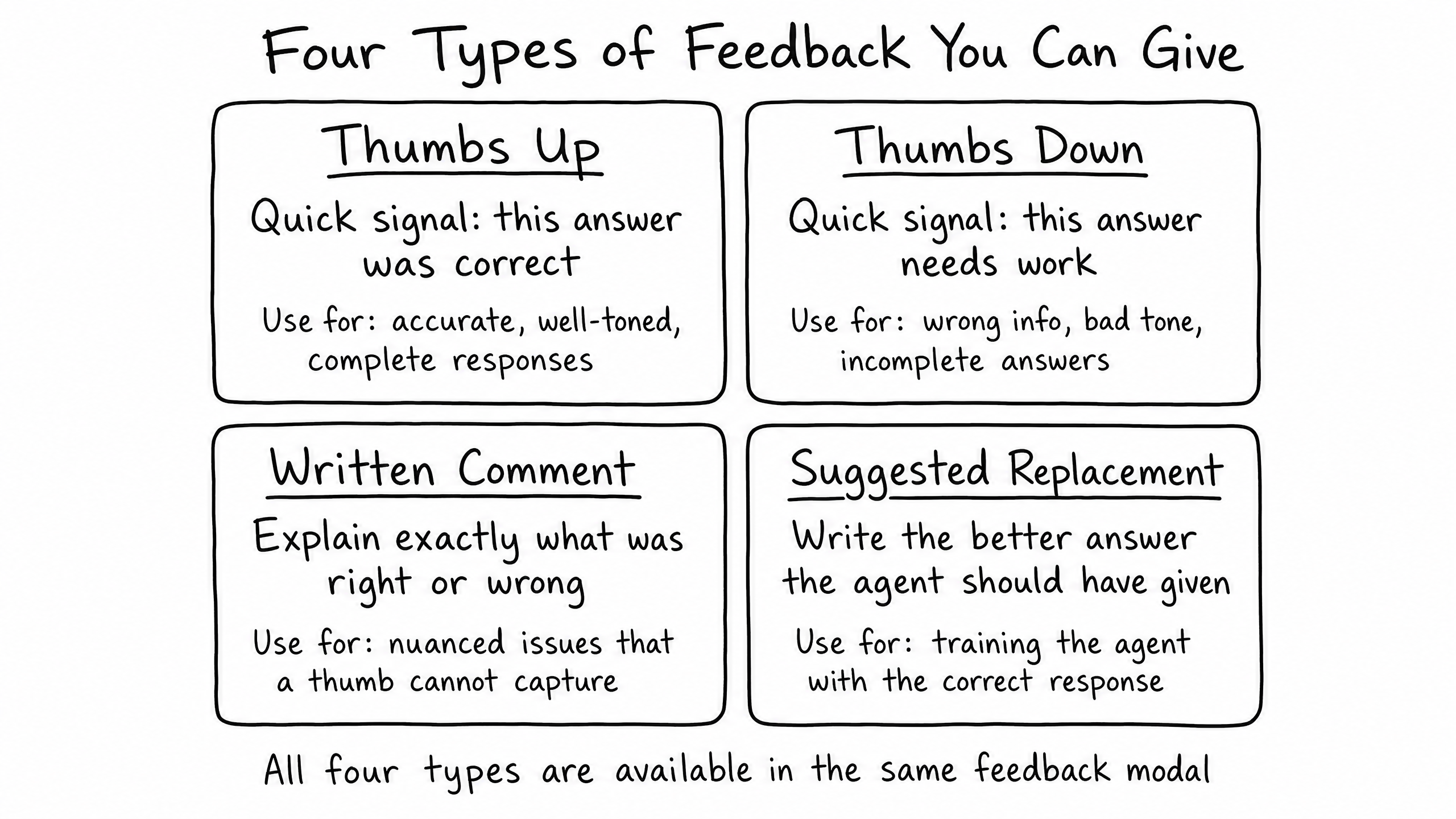
Whenever you are reviewing a conversation in Copilot, you may see thumb icons beneath agent replies, depending on the message and your role. Clicking these icons opens the feedback modal, where you can provide four different types of input.
Type 01
Thumbs Up
A signal for reviewers that the reply was useful. Explain what was accurate, complete or well phrased so the team knows what to preserve; the vote alone does not change the agent.
Type 02
Thumbs Down
A quick signal that the answer needs work. Flags the response for Admin review.
Type 03
Written Comment
A plain-text explanation of exactly why the answer was good or bad (e.g., "The refund window is 30 days, not 14").
Type 04
Suggested Replacement
You write the response the agent should have given in this situation. It gives the reviewer a clear target to fix and re-test against.
From Feedback to Training
Feedback in Copilot does not just disappear into a void. It enters a structured continuous improvement cycle.
Recommended workflow (not a product screen)
- Review the feedback in the Feedback Skill's Feedbacks list. Ignore or delete what does not apply.
- Fix the cause: edit the agent's Agent Instructions or Documents on the Train tab in Launch Pad. For generated feedback documents, find the document in raia Command and review it alongside Instruction Builder before applying instruction changes.
- Wait until changed documents show as ready.
- Ask the original question and a few variations again in Copilot.
When you submit feedback, it is immediately logged to the conversation history. From there, an Administrator reviews the feedback in the dedicated Feedbacks tab.
- Highlight 1: Configuration holds the settings. Feedbacks lists the feedback itself.
- Highlight 2: Period: how far back feedback is included (here, Last 30 days).
- Highlight 1: Generation Mode: Auto generates the feedback document for you.
- Highlight 2: Auto Upload Document: when on, the document is uploaded to the AI right after it is generated.
- Highlight 3: Click Save.
In the Feedbacks list, ignore or delete feedback that does not apply. When a fix is needed, correct the agent's Agent Instructions or Documents on the Train tab in Launch Pad. If you generate a feedback document, find it in raia Command and review it alongside Instruction Builder. Review and apply the changes you want, then ask the original question and a few variations again. Generation and Auto Upload Document are separate settings; neither feedback nor generation automatically applies instructions or retrains the model. A fix is not guaranteed to hold forever, so keep checking.
The Scoring Skill
While you provide manual feedback on specific messages, raia also measures quality automatically using the Scoring Skill.
If Scoring is enabled, it evaluates ended conversations against the configured scoring prompt. Find Avg AI Score on Report. Use it to choose conversations to review, then compare replies with the transcript and source; the score is not a fact check.
- Highlight 1: Prompt for Conversation Scoring: what each score means.
- Highlight 2: “Use scoring from 1 to 10. Values outside this range are not supported.”
- Highlight 1: Prompt for Conversation Summary.
- Highlight 2: Click Save.
- Highlight 1: Avg AI Score: the average Scoring result (1 to 10) and how many conversations were scored, split into High, Mid and Low.
- Highlight 2: Human Feedback: thumbs-up and thumbs-down votes.
- Highlight 3: Token Usage for the selected period.
Use scores to choose conversations for closer review. Read the transcript and compare important claims with their sources; a high score can still accompany an inaccurate or incomplete answer.
Frequently Asked Questions
If I give a thumbs down, does the agent immediately stop giving that answer?
No. A thumbs down flags the response for review. Correct the agent's Instructions or Documents, then re-test to confirm. If you generate a feedback document, review it in raia Command alongside Instruction Builder before applying instruction changes; generating or uploading the document does not itself apply new instructions or retrain the model.
Should I write a comment or provide a suggested replacement?
It depends. If you know the right answer for this situation, write it as a suggested replacement. It gives the reviewer a clear target. If you only know what was wrong, a comment is fine. Either way, re-test after the fix.
Can end-users (customers) leave feedback?
Yes, if the Live Chat widget is configured to show feedback buttons, customers can click thumbs up/down on responses. This customer feedback appears in the exact same Feedbacks tab for Admin review.