What you will learn
- Navigate the unified omnichannel conversation view in raia Copilot.
- Use three suggested ways of working in Copilot: monitor conversations, check a reply, and step in when needed.
- Understand how to use Admin Mode to diagnose agent behavior.
- Step into a live conversation where human-in-the-loop is enabled, and hand it back.
Three Ways to Work in Copilot
Use raia Copilot to review conversations, step in when human judgment is needed, and leave specific feedback for the person maintaining the agent. Improve replies by correcting instructions or knowledge and retesting.
These are suggested tasks, not three buttons or modes in Copilot. The only switch covered here is Admin Mode, described below.
Task 01
Monitor conversations
Your default state. Watch conversations from the channels you have configured, such as Live Chat, SMS, Email and Voice, in one inbox. Look for trends and make sure the agent is handling routine inquiries smoothly.
Task 02
Check a reply
When an agent gives an unexpected answer, look under the reply: click Sources to see which files it cited, or the model name to see which model answered and how many tokens it used.
Task 03
Step in when needed
When a conversation needs empathy, complex negotiation, or falls outside the agent's guardrails, step in. On agents with human-in-the-loop enabled, a person can join the conversation; the controls you see depend on the agent's configuration and your permissions. If you don't see a way to step in, ask your admin.
Admin Mode and Reply Details
To oversee an agent, you need to see where its answers come from. Copilot gives you a few real controls for that. What appears can vary with the agent's configuration, the model and your permissions.
- Highlight 1: The reply names its source when the instructions ask it to.
- Highlight 2: The model name: click it to see Model usage.
- Highlight 3: Sources: click it to see the files the reply cited.
- Highlight 1: Click Sources under the reply.
- Highlight 2: The Files tab.
- Highlight 3: The cited file: northstar-support-guide.md.
- Highlight 1: Click the model name.
- Highlight 2: Model usage: provider, model, reasoning effort and mode, and token counts.
Here is what each control does:
01
Sources
Click Sources under a reply. The Files tab lists the files the reply cited. It is not every piece of text searched, and it has no relevance scores.
02
Model usage
Click the model name under a reply to see Provider, Model, Reasoning effort, Reasoning mode, and Input, Output, Reasoning and Total tokens. It does not show the model's internal thinking.
03
Admin Mode
A switch in your profile menu. When it is on, you see the operator view: conversation filters, assignment and status controls, and conversations beyond your own, depending on your role.
04
What Copilot does not show
There is no confidence score or four-part debugging panel. Judge an answer by reading it and checking its Sources.
If an answer is wrong, compare it with the cited passage. Check source currency, missing or conflicting facts and behavior rules; the file name alone does not identify the cause. Correct what needs changing and retest.
Optional: share an answer for review
Want a teammate to check an answer? Click Download under the reply and save it as a PDF or Word file they can open.
- Highlight 1: Five download formats
- Highlight 2: Copy / Download
The Human-in-the-Loop Decision
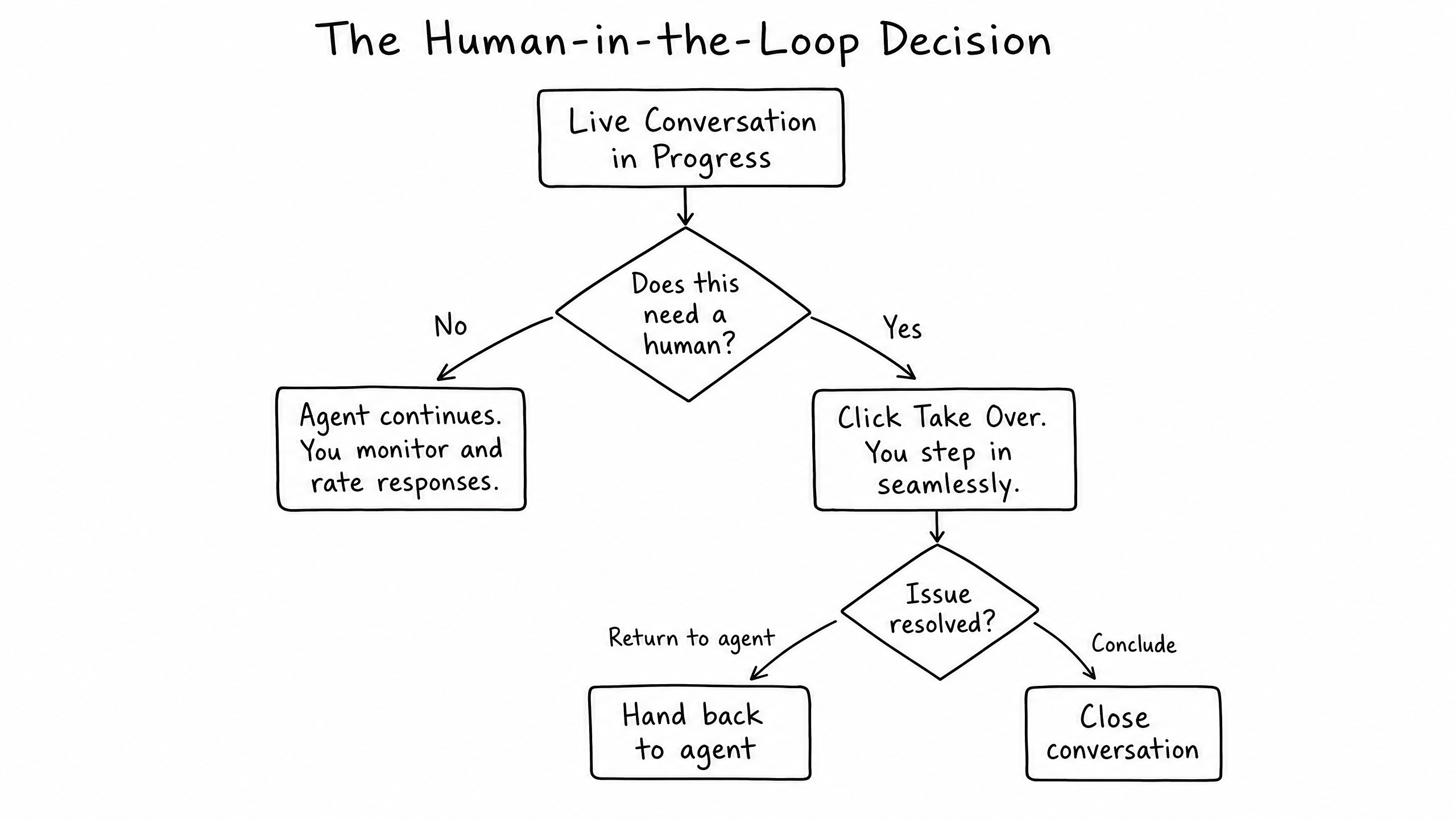
The most important decision you make as an Agent User is knowing when to let the agent handle it, and when to step in.
Stepping in
These docs don't confirm what the customer sees when a person steps in, so test it with a fictional conversation and follow your company's policy on introducing yourself. Before you step in, find out how your setup hands the conversation back to the agent, so it isn't left waiting. Once you have resolved the issue, you usually have two choices:
Close the conversation
Use when the interaction is fully complete and no further follow-up is needed.
Hand back to agent
Use when the user has more routine questions the AI can handle, freeing you up to assist someone else.
Frequently Asked Questions
Does the user know when I step into a conversation?
These docs don't confirm what the customer sees. Test it with a fictional conversation on your own channel, and follow your company's policy; many teams introduce themselves (for example, "Hi, this is Sarah stepping in to help").
Can I see conversations from all channels in Copilot?
Copilot shows conversations from the channels you have configured, such as Live Chat, SMS and Email, in one inbox. What you see depends on your role, the selected agent and your filters, so check each channel you rely on.
If I fix an answer while I'm stepped in, does the agent learn from it automatically?
Stepping in helps the customer now; it does not automatically change future answers. Record the issue for review, correct the relevant instructions or documents, and retest the same question. Scoring helps prioritize review; it does not retrain the agent.