MCP · Quick Guide
Quick Guide to Add Agent to ChatGPT
Connect your raia agent to ChatGPT as a Custom Connector (plugin) using MCP with OAuth. Six short steps, no code required.
Before you start: make sure the MCP Skill is enabled on your agent in the raia Dashboard and that you have your agent's OAuth Registration URL (looks like https://api.raia2.com/mcp/<YOUR_AGENT_ID>). See the MCP Skill reference for full details.
- Step 01
Open ChatGPT and create a new Plugin (Custom Connector)
In ChatGPT, open Settings → Connectors → Advanced → Developer mode and click Create to add a new plugin. You'll see the New Plugin panel shown below.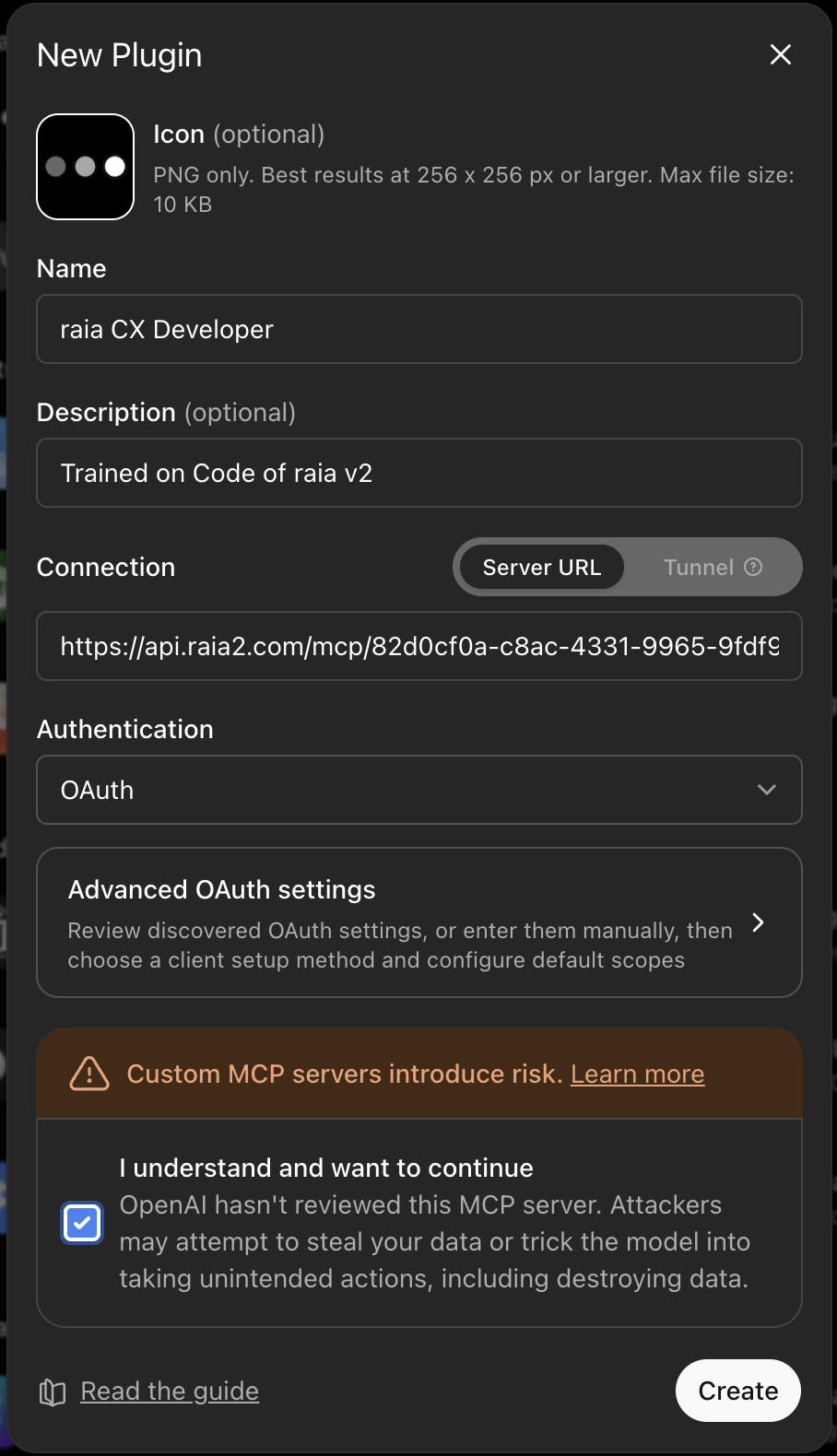
- Step 02
Fill in your agent details
Enter the following:
- Name — the name of your raia agent (e.g. "raia CX Developer").
- Description — a short summary of what the agent does.
- Connection — choose Server URL and paste your agent's OAuth Registration URL:
https://api.raia2.com/mcp/<YOUR_AGENT_ID> - Authentication — select OAuth.
- Check "I understand and want to continue" and click Create.
- Step 03
Sign in with your raia agent
ChatGPT opens a window titled "Add <agent> to ChatGPT". Click Sign in with <your agent> to start the OAuth flow. You'll be redirected to raia to authenticate.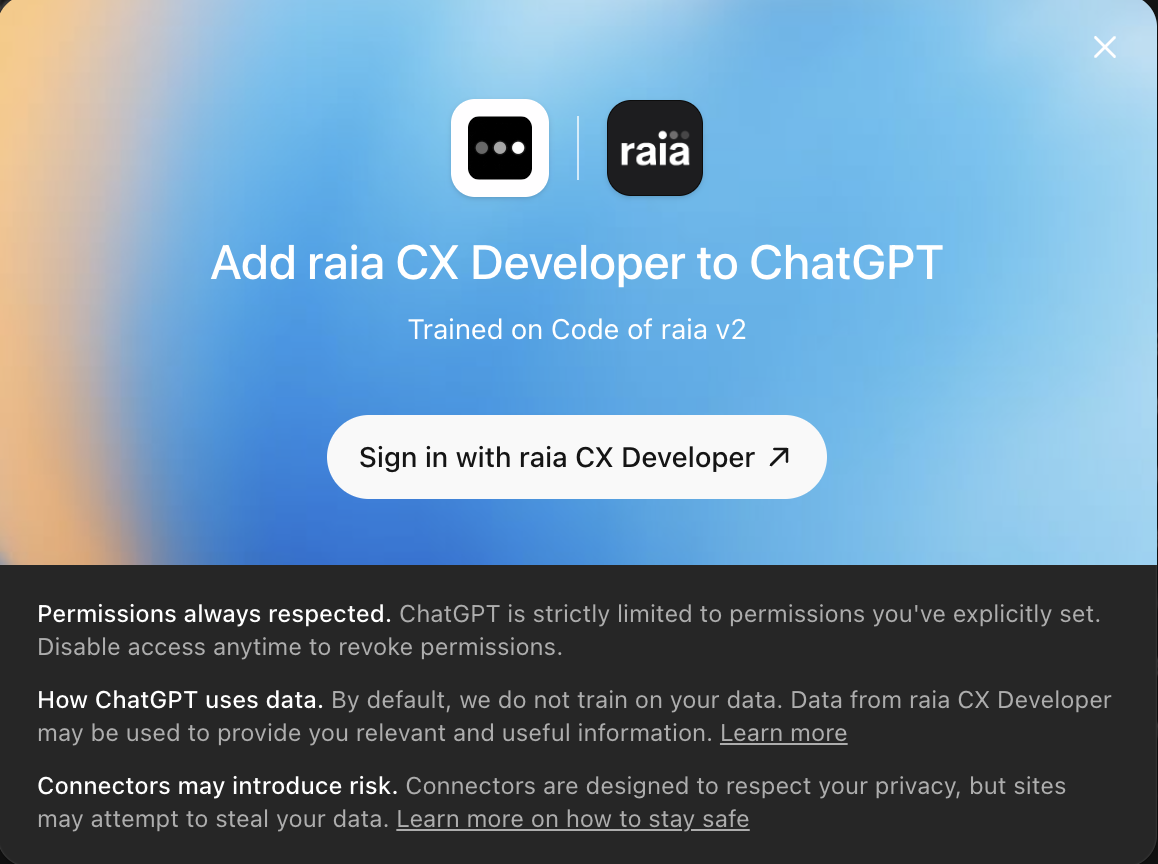
- Step 04
Allow ChatGPT to connect to your agent
After signing in, raia shows a consent screen listing the permissions ChatGPT is requesting — typically openid and Ask your agent questions and read its responses. Click Allow to authorize the connection.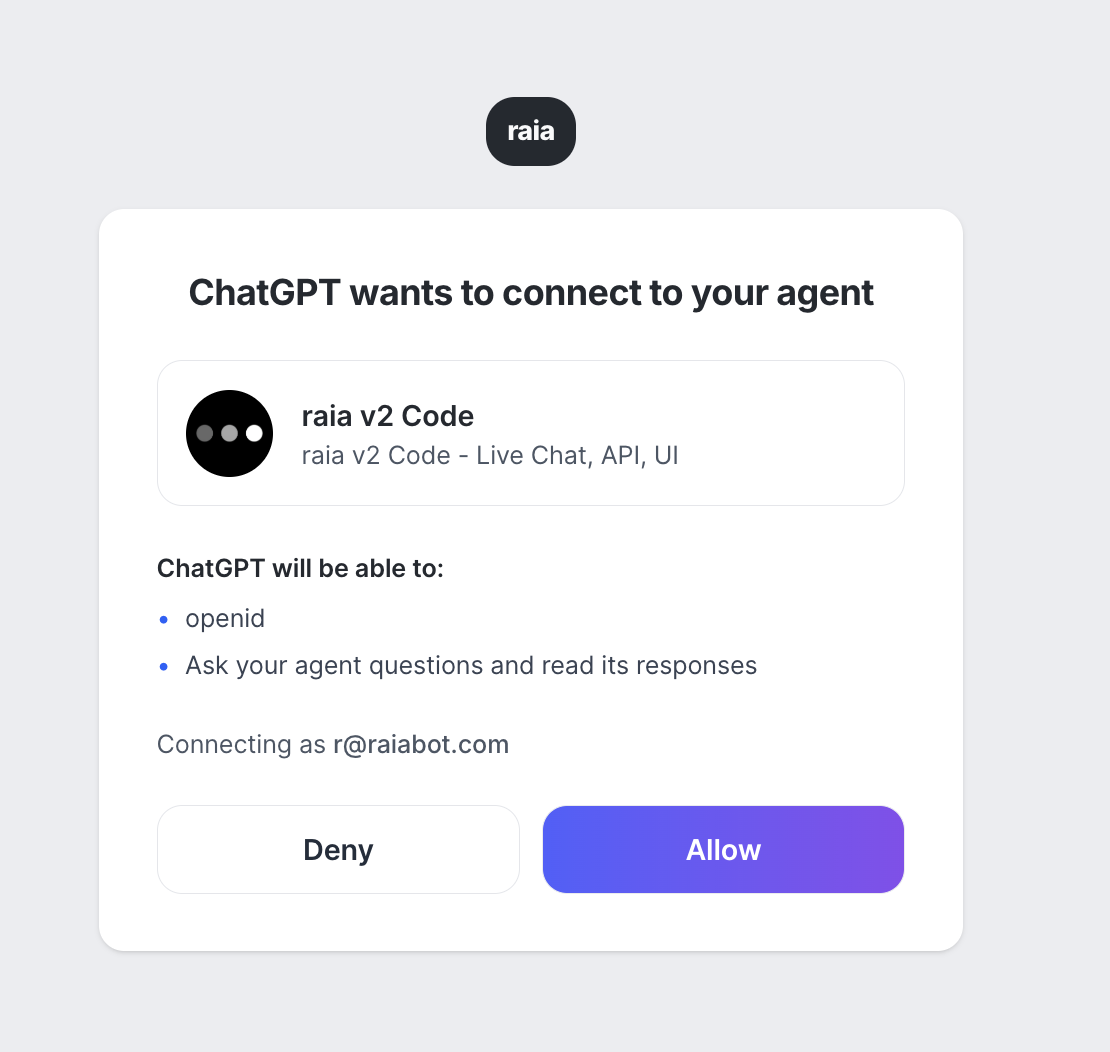
- Step 05
Confirm your agent is connected
Back in ChatGPT, your plugin now shows a green Connected badge. You'll see your agent's name, description, and version listed under the plugin's Information section.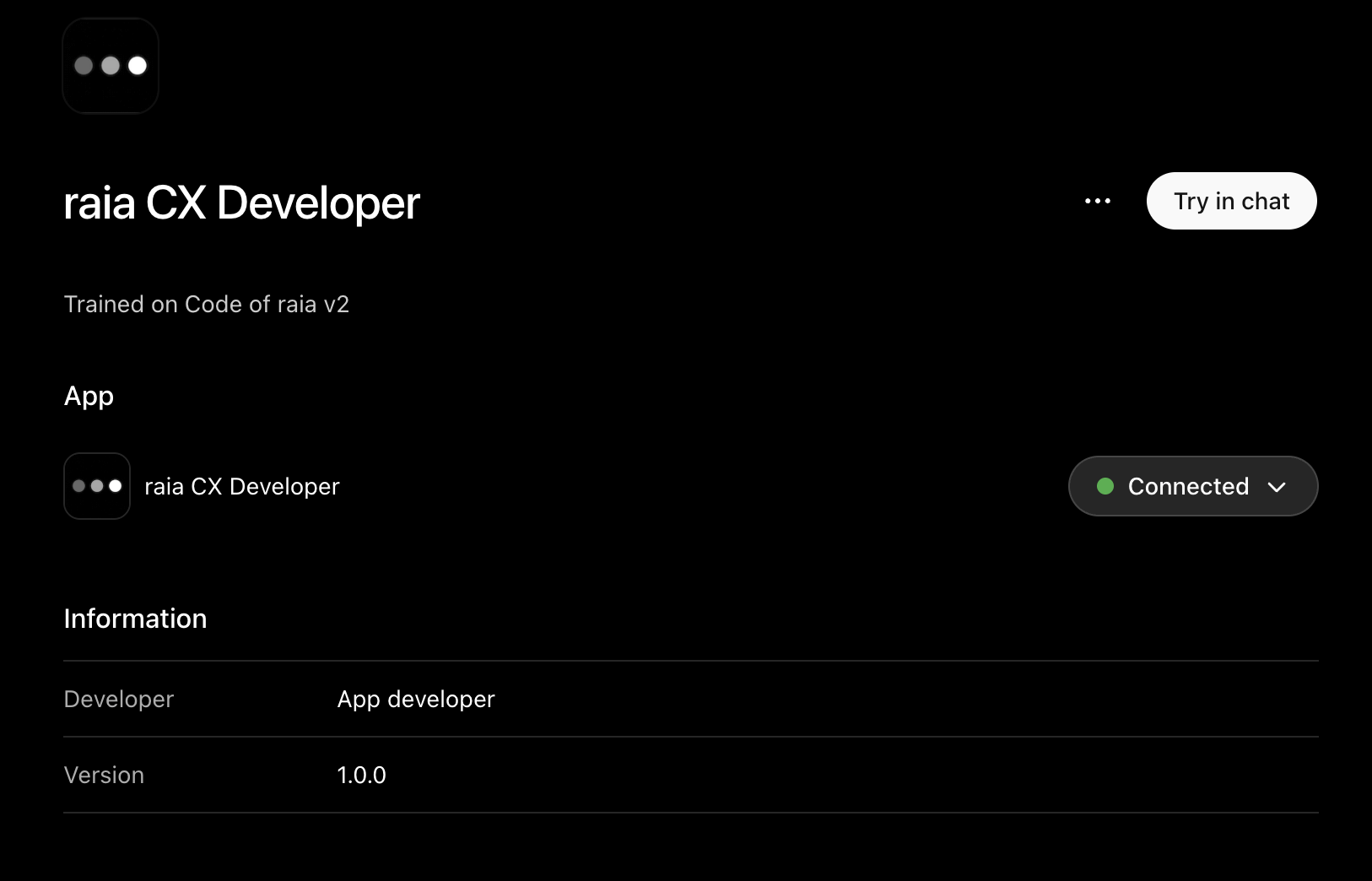
- Step 06
Use your agent inside ChatGPT
In any new ChatGPT conversation, click the + button (or type@) and select your agent from the Plugins list. ChatGPT will route your question to your raia agent's full AI pipeline — including its knowledge base and skills — and stream the response back into the chat.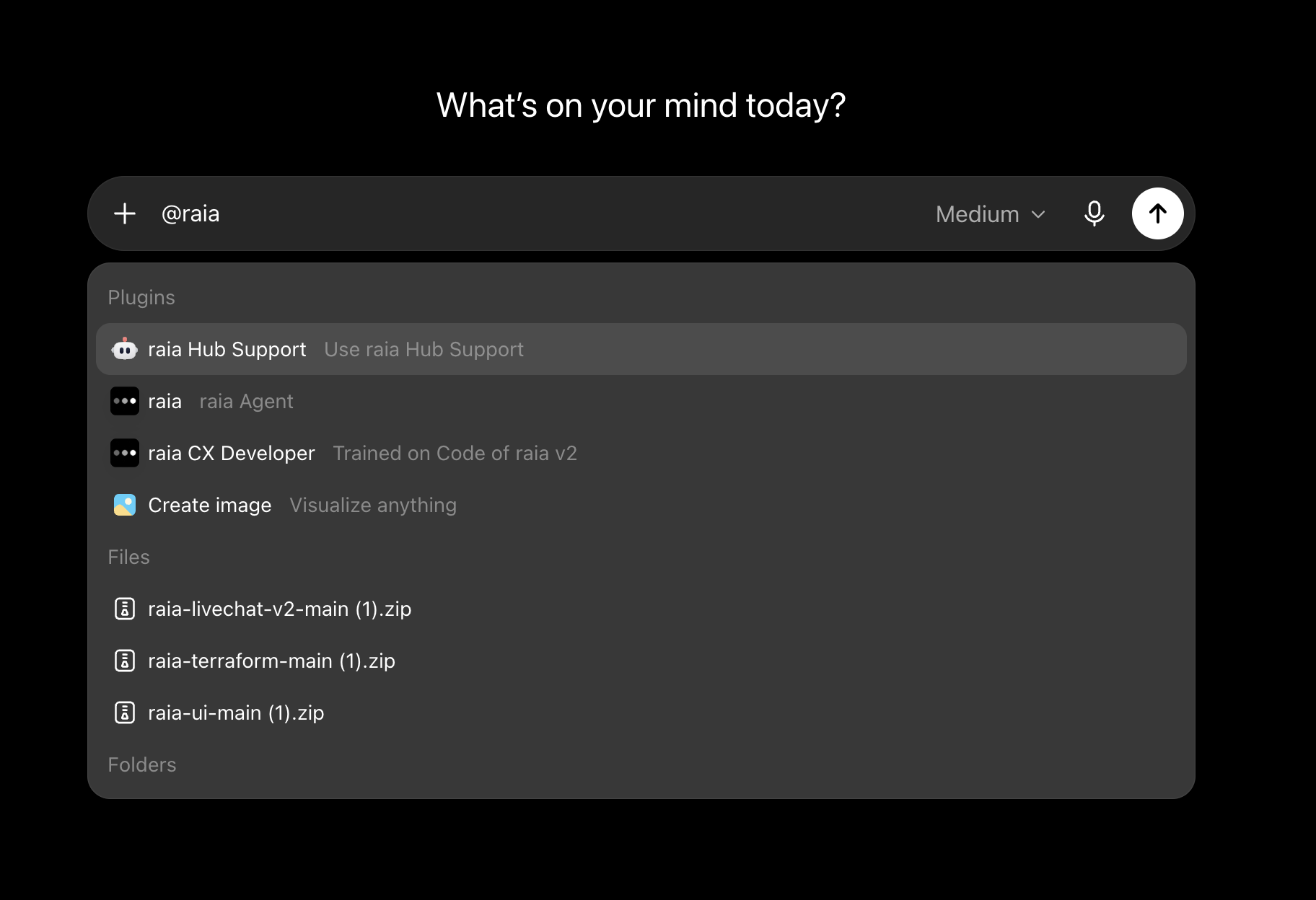
That's it — you're connected.
The same OAuth flow works for Claude Desktop, Cursor, and Windsurf. See the MCP Skill guide for per-client setup and the Bearer-token fallback.