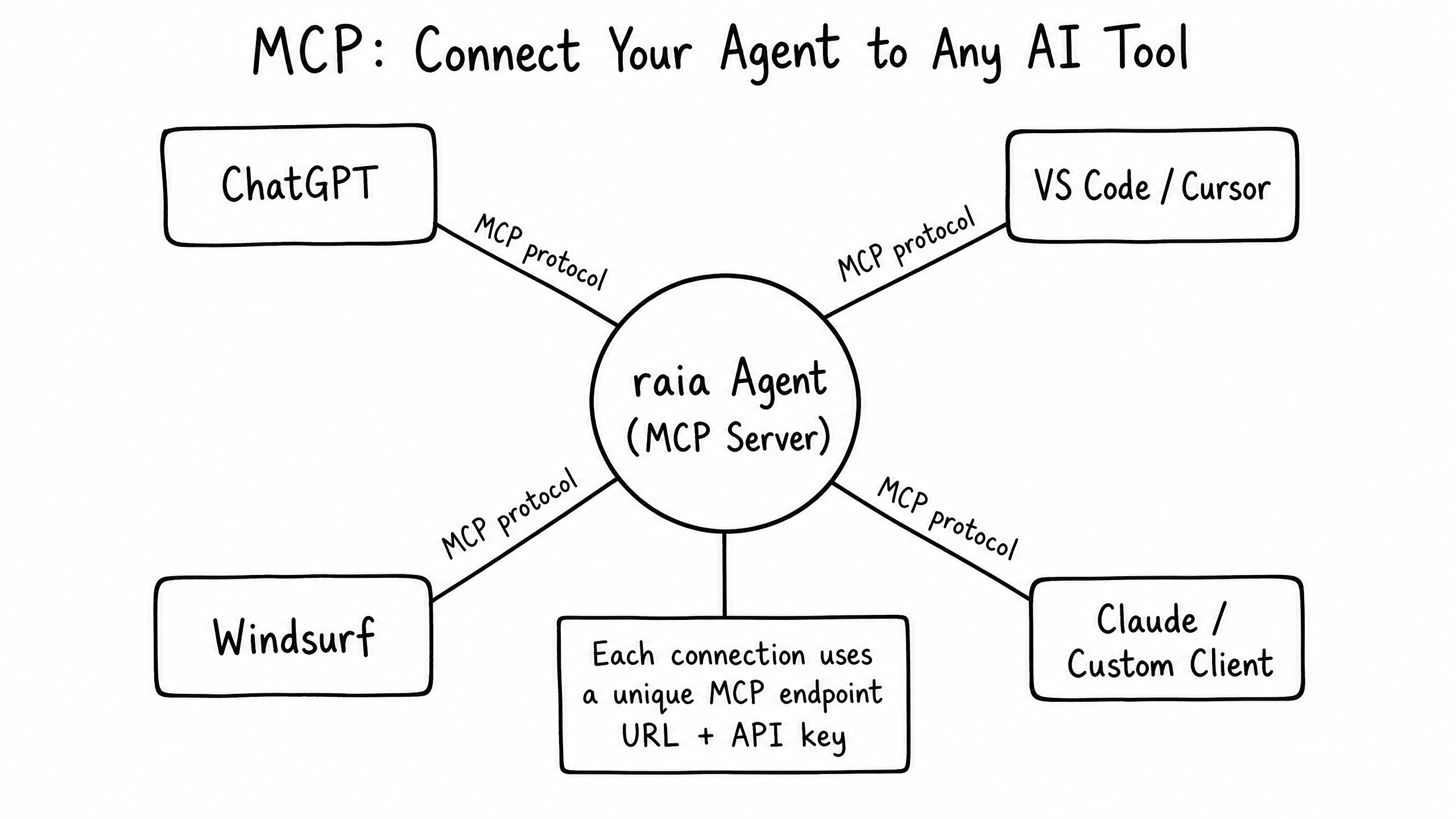
How it works
MCP Tools (Server Mode) turns your raia agent into a Model Context Protocol server. External MCP clients — Claude Desktop, Cursor, Windsurf, ChatGPT and any custom MCP client — can query your agent's full knowledge (instructions, vector store, linked packs) through a single standardized get-any-info-about-[Agent] tool. Authenticate with a regeneratable Bearer secret or a full OAuth flow.
Key features
Server Mode (RAIA MCP)
Exposes a get-any-info-about-[Agent] tool so external MCP clients can query your agent's full context (instructions, vector store, linked packs).
Bearer Token Auth
Share an Authorization: Bearer [Secret Key] with the client. Rotate the secret at any time if it is compromised.
OAuth Flow
Distribute a standard OAuth Registration URL so clients like ChatGPT can register and authenticate end users.
AI-Optimized Descriptions
Use the Optimize with AI button to auto-generate Server and Tool Descriptions from your agent's core instructions so external clients know when to call you.
Ready for ChatGPT, Claude, Cursor, Windsurf
Compatible with every mainstream MCP client. Includes step-by-step quickstarts for adding your agent as a plugin.
Regeneratable Secret Keys
One-click rotation invalidates old tokens instantly, without disrupting your OAuth-connected clients.
How to configure it
- 01
Open the MCP skill and select the RAIA MCP tab (Server Mode).
- 02
Fill in a Server Description and Tool Description, or click Optimize with AI to generate them from your agent's instructions.
- 03
Copy the MCP Endpoint URL and Secret Key, or the OAuth Registration URL.
- 04
Paste the URL + Bearer token into your external MCP client (Claude Desktop, Cursor, Windsurf) or share the OAuth URL with ChatGPT users.
- 05
Rotate the Secret Key at any time if you need to revoke access.
Connecting external tools via OAuth or Bearer token
Quick Guides: Add your agent to ChatGPT or Claude
MCP Integrations — connect your agent to external apps
The Model Context Protocol (MCP) lets you connect your raia agent directly to external AI tools and coding environments like Claude Desktop, ChatGPT / Codex, Cursor, and Windsurf. Once connected, these clients can query your agent's knowledge base, trigger its skills, and interact with its full AI pipeline.
raia supports two connection methods:
- OAuth (recommended) — the most secure method, ideal for desktop clients and personal use.
- Secret Key (Bearer Token) — best for programmatic access, server-to-server integrations, or clients that don't yet support OAuth.
Method 1 — Connecting via OAuth (recommended)
OAuth uses a standard browser-based login flow, so you never have to copy or paste sensitive secret keys.
Step 1 — Get your agent's OAuth Registration URL
- 01
Log in to the raia Dashboard.
- 02
Navigate to your agent's settings and open the MCP Skill page.
- 03
If you haven't already, click Set up MCP Skill.
- 04
Locate the OAuth Registration URL — it will look like https://api.raia2.com/mcp/<YOUR_AGENT_ID>.
- 05
Copy this URL.
Step 2 — Configure your client
Claude Desktop
Claude Desktop supports remote MCP servers via Custom Connectors.
- Open Claude Desktop.
- Navigate to Settings → Connectors (or Customize → Connectors on the web).
- Click Add custom connector.
- Paste your OAuth Registration URL.
- Click Connect. Claude opens a browser window asking you to authorize the connection.
- Click Allow on the raia consent screen.
Alternatively, you can manually edit claude_desktop_config.json and add your URL under a new server entry.
ChatGPT / Codex (Desktop App)
- Open the ChatGPT Desktop app.
- Go to Settings → MCP servers.
- Click Add server.
- Choose Streamable HTTP and enter your OAuth Registration URL.
- Save the server and click Restart.
- When prompted, click Authenticate to sign in via the browser.
For config.toml users, add:
[mcp_servers.raia_agent]
url = "https://api.raia2.com/mcp/<YOUR_AGENT_ID>"
auth = "oauth"
Cursor IDE
- Open Cursor.
- Navigate to Cursor Settings → Tools & MCP.
- Click Add New MCP Server.
- Set the Type to Streamable HTTP (or a similar URL-based option).
- Paste your OAuth Registration URL.
- Save and initiate the connection. Cursor opens a browser for authentication.
Windsurf
- Open Windsurf.
- Navigate to Settings → Cascade → MCP Servers.
- Click Add Server and choose a URL-based / Streamable HTTP server.
- Paste your OAuth Registration URL.
- Save. Windsurf opens a browser window to authorize the connection.
Method 2 — Connecting via Secret Key (Bearer Token)
Some IDEs (like JetBrains) and custom programmatic scripts don't yet support the MCP OAuth flow. For these clients, use header-based authentication with a Bearer token.
Step 1 — Get your MCP Endpoint and Secret Key
- 01
Log in to the raia Dashboard.
- 02
Navigate to your agent's settings and open the MCP Skill page.
- 03
Locate the Header-based authentication section.
- 04
Copy the MCP Endpoint URL (exactly https://api.raia2.com/mcp).
- 05
Click the eye icon to reveal and copy your Secret Key.
Step 2 — Configure your client
Configure your client to send the Secret Key as a Bearer token in the HTTP Authorization header.
JSON format
Used by older Cursor versions and many custom clients:
{
  "mcpServers": {
    "raia_agent": {
      "url": "https://api.raia2.com/mcp",
      "type": "streamableHttp",
      "headers": {
        "Authorization": "Bearer <YOUR_SECRET_KEY>"
      }
    }
  }
}
TOML format
Used by tools like the Codex CLI:
[mcp_servers.raia_agent]
url = "https://api.raia2.com/mcp"
http_headers = { "Authorization" = "Bearer <YOUR_SECRET_KEY>" }
Security warning
How to use the connected agent
Once connected, your external tool will discover a new tool / function named get-any-info-about-<agent-name>.
When you ask Claude, ChatGPT, Cursor, or Windsurf a question related to your agent's domain, the client automatically invokes this tool. The prompt is passed securely to raia, run through your agent's complete AI pipeline (including its knowledge base and connected skills), and the response is returned directly into your chat or coding environment.
Frequently asked questions
Which MCP clients can connect to my agent?
Any MCP-compliant client — Claude Desktop, Cursor, Windsurf, ChatGPT Enterprise, and custom clients built with the official MCP SDKs.
How do external clients authenticate to my agent?
Either header-based auth (the client sends Authorization: Bearer [Secret Key], which you can regenerate at any time if compromised) or a standard OAuth flow using the OAuth Registration URL.
What data does the exposed tool return?
The single get-any-info-about-[Agent] tool answers using your agent's full context — instructions, vector store contents, and linked knowledge packs — so external clients get the same answers your agent would give.
Can I use MCP Tools and MCP Integrations at the same time?
Yes. Server Mode (MCP Tools) and Client Mode (MCP Integrations) are independent and can both be enabled on the same agent.