What you will learn
- Understand how a Vector Store differs from a traditional file folder.
- Choose the right file formats for different types of content.
- Prepare and structure your documents so the AI can easily understand them.
- Use raia Command to upload, convert, and train your agent on new knowledge.
What Is a Vector Store?
In the previous modules, you gave your agent its brain by writing Instructions. Now you need to give it a memory. You do this by uploading documents into the agent's Vector Store.
A Vector Store is not like a traditional file folder where you search for exact keyword matches. It converts your files into mathematical chunks (embeddings) that the AI can search by meaning and context.
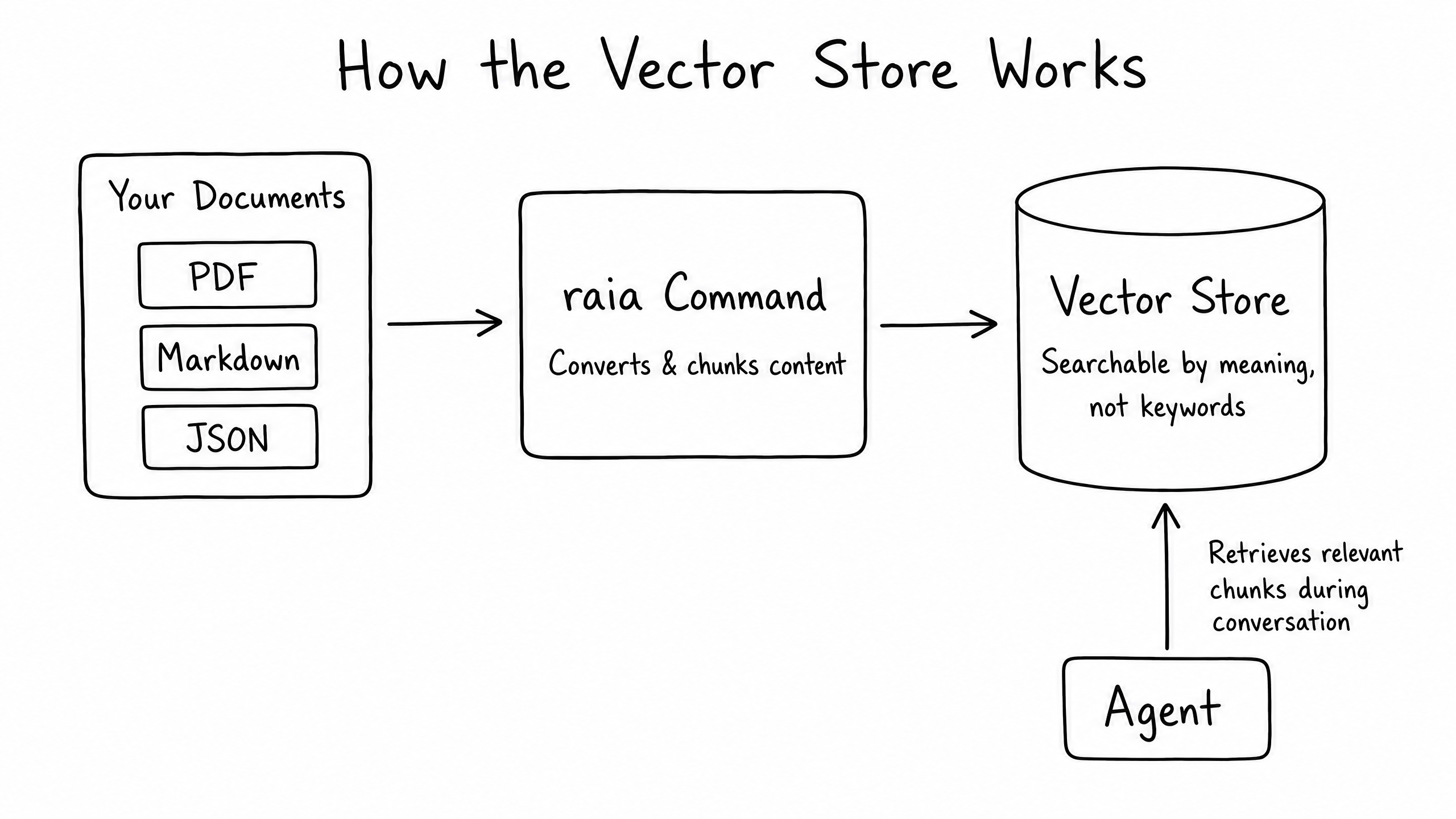
When a customer asks a question, the agent searches the Vector Store, retrieves the most relevant chunks, and uses them to formulate a conversational answer based on the rules in its Instructions.
Choosing the Right File Formats
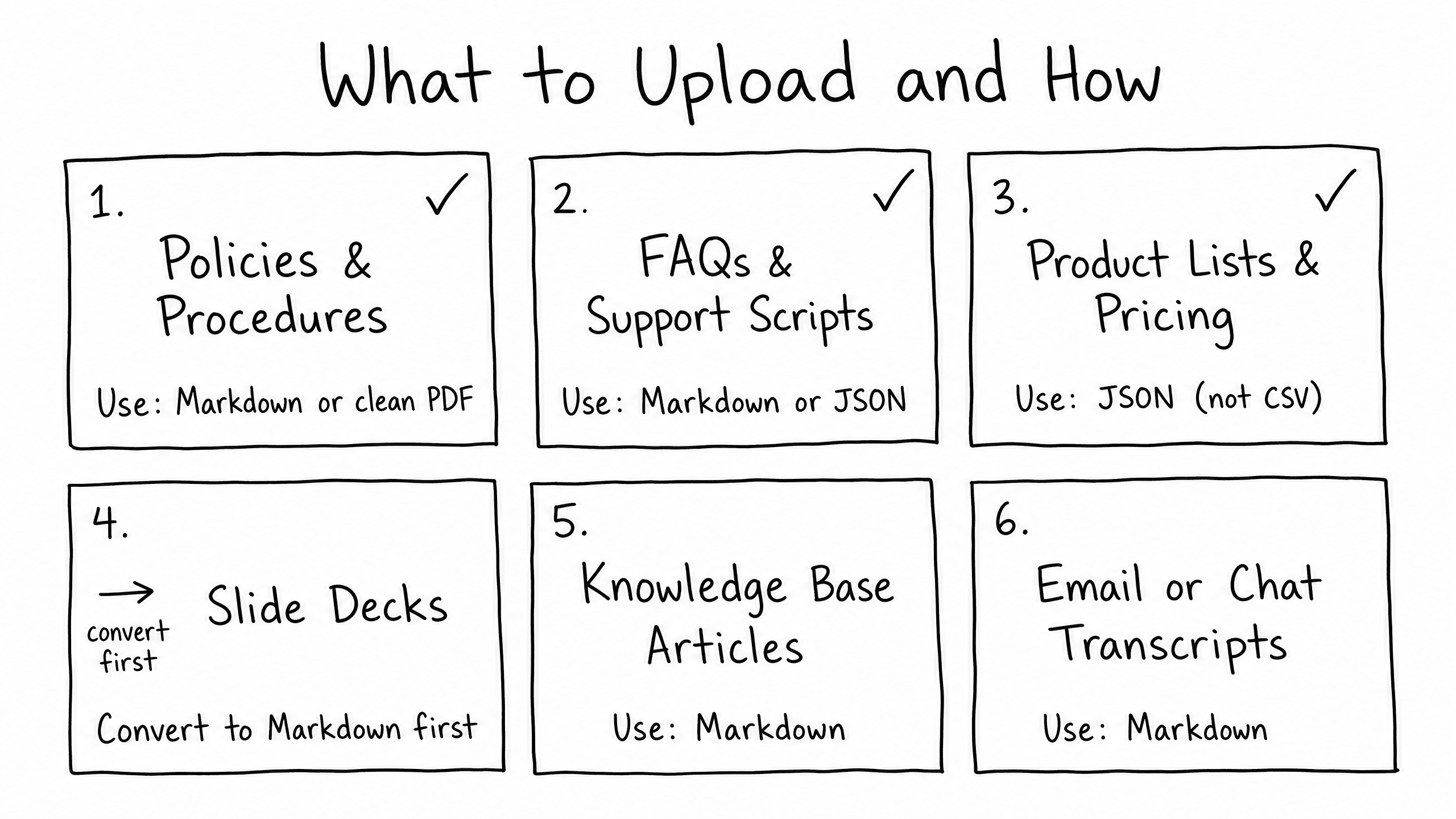
Not all documents are created equal. Format and structure directly impact how well the AI retrieves and uses information. raia can ingest almost anything, but Markdown (.md) and JSON (.json) are the gold standards for AI training.
| Format | Recommendation | Why |
|---|---|---|
| Markdown (.md) | Best | Markdown uses clear headers and bullets, which perfectly map to how the AI chunks information. |
| JSON (.json) | Best for data | Ideal for structured data like product catalogs, pricing matrices, or large Q&A sets. |
| PDF (.pdf) | Good | Works well if the PDF is text-heavy and cleanly formatted. Avoid PDFs that are scanned images of text. |
| Word (.docx) | Acceptable | raia Command converts Word to Markdown automatically, but complex formatting may be lost. |
| CSV / Excel | Avoid | Spreadsheets flatten data and lose context. Convert tables to JSON before uploading. |
| Slide decks | Avoid | Slides contain disjointed text, floating text boxes, and missing context. Copy the core text into a Markdown file instead. |
Best Practices for Formatting Content
If you want your agent to give smart, accurate answers, feed it well-structured documents. Follow these three rules before uploading:
Rule 1
Use structured headings
Break up walls of text. Use clear, descriptive headings for every section. The AI uses headings to understand the context of the paragraphs below them.
Rule 2
Keep sections focused
Keep each section between 200 and 500 words. Split a 50-page handbook into smaller logical files (e.g., handbook_intro.md, handbook_benefits.md, handbook_policies.md).
Rule 3
Use a consistent Q&A format
If you are uploading FAQs, use a consistent structure so the AI learns the pattern — e.g., Q: What is the refund policy? / A: Our refund policy allows returns within 30 days...
The Upload Workflow in raia Command
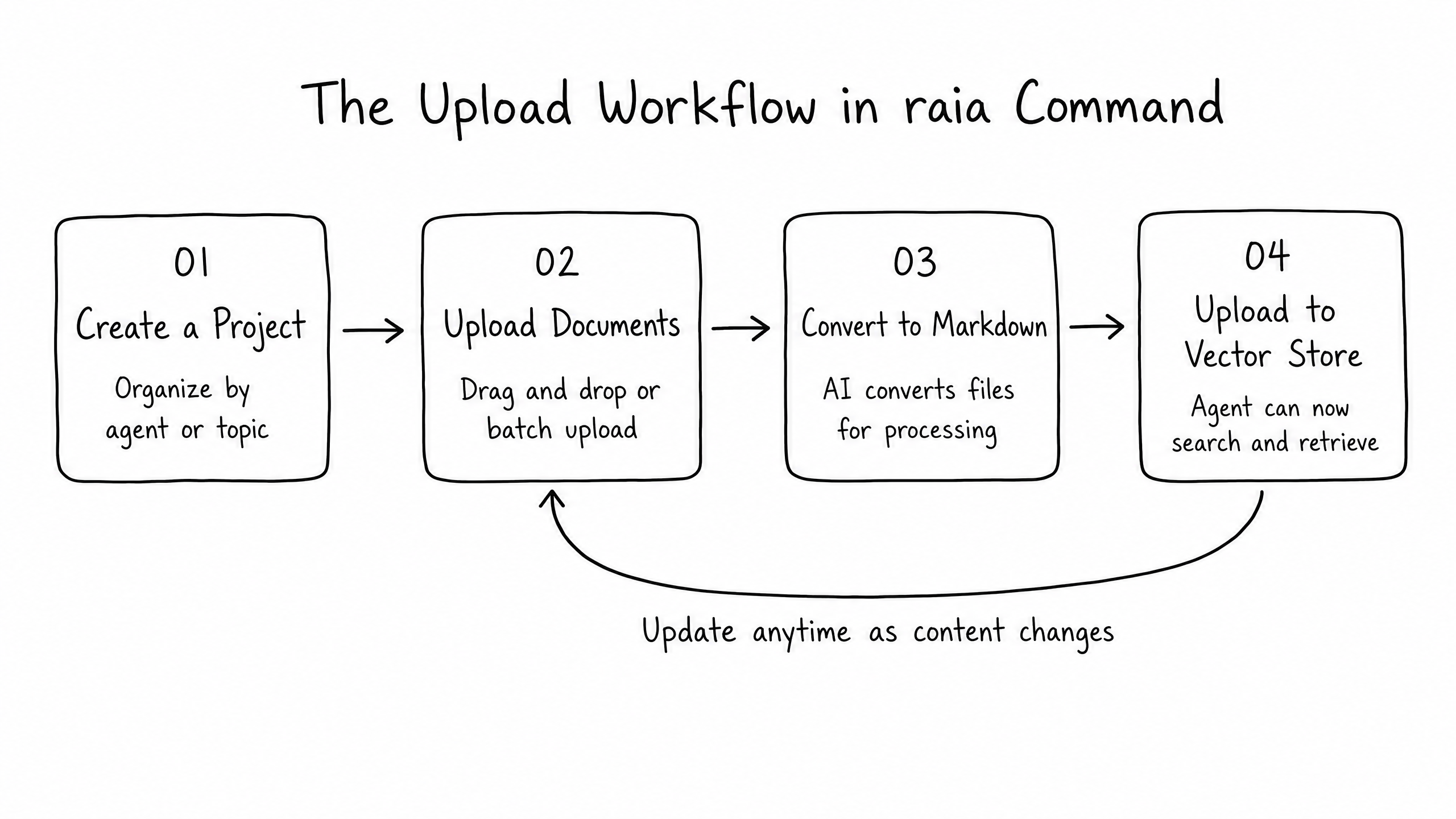
You manage your agent's knowledge base using the raia Command application. The process is a simple, four-step workflow:
Step 01
Create a project
In raia Command, create a new project — a workspace to organize related documents.
Step 02
Upload documents
Drag and drop your files into the Data Room. You can upload up to 500 files at once.
Step 03
Convert to Markdown
Select the files and choose Convert to Markdown. (You can set the project to do this automatically.)
Step 04
Upload to Vector Store
Select the converted files and choose Upload to Vector Store. The documents are now live and searchable.
Frequently Asked Questions
If I update a document, do I need to delete the old one?
No. If you upload a new version of a document with the exact same filename, raia Command updates the Vector Store with the new content automatically.
Can I connect my existing Zendesk or Google Drive instead of uploading files manually?
Yes. raia Command includes Connectors that automatically pull and sync content from external sources like Zendesk, Google Drive, Salesforce, and GitHub directly into your project.
How do I know if the agent is actually using the documents I uploaded?
Test it. Once you upload a document to the Vector Store, open raia Copilot and ask the agent a question about that specific document. If it answers correctly, the training worked.