01
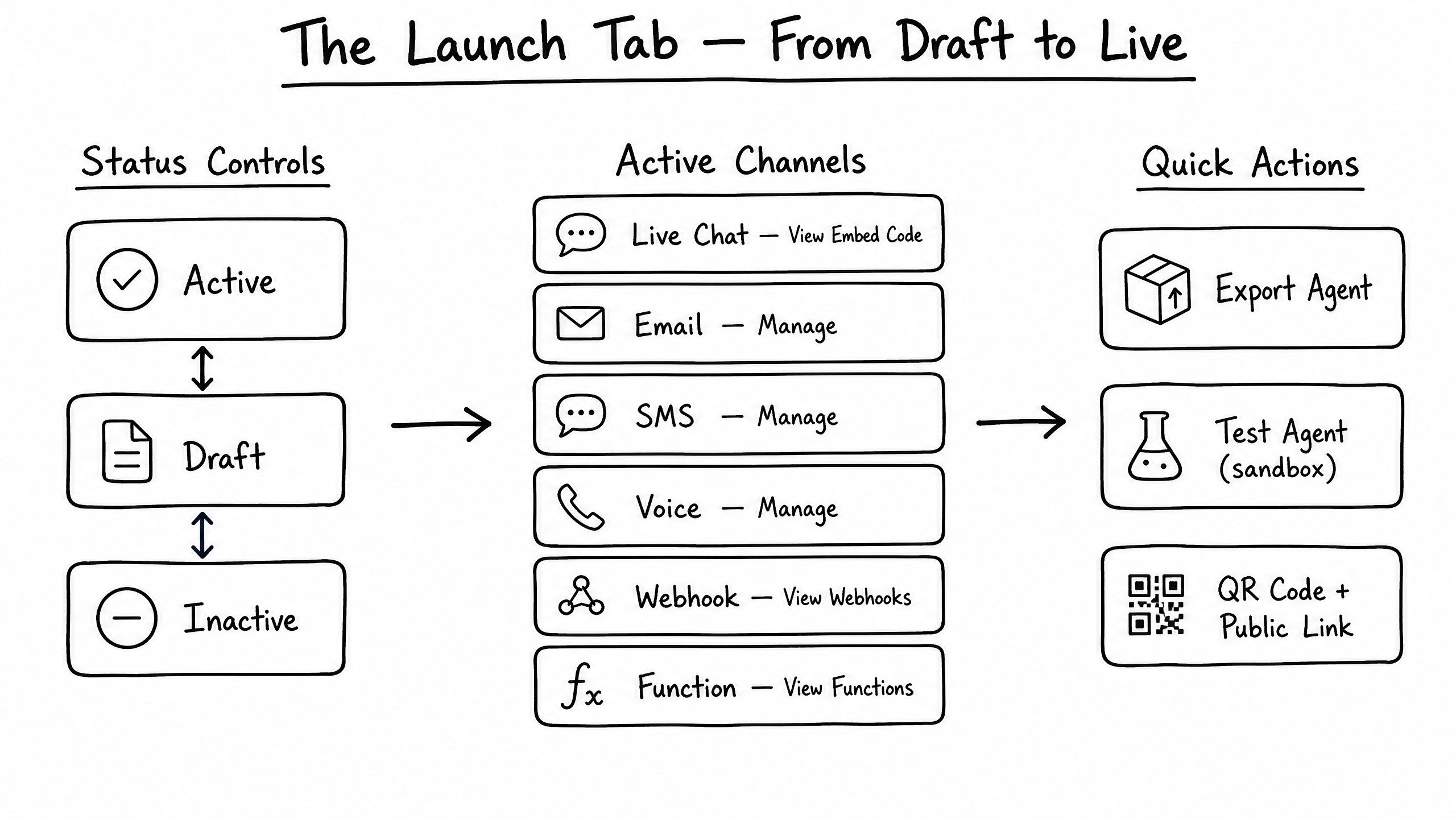
Sub-tab: Status Controls
A master toggle determines the overall state of the agent.
- Active — the agent is live and responding on enabled channels.
- Draft — the agent is in development and not accessible publicly.
- Inactive — the agent is temporarily disabled.
02
Sub-tab: Active Channels
One card for every channel enabled in the Skills tab. Manage channel-specific settings from here.
- Live Chat — view and copy the embed code for your website.
- Email / SMS / Voice — routing and connection settings per channel.
- Webhook / Function — view endpoints and function definitions.
03
Sub-tab: Quick Actions
Shortcuts for testing, sharing, and exporting the agent.
- Export Agent — download the agent's configuration for backup or migration.
- Test Agent (Sandbox) — open a secure sandbox to test behavior before going live.
- QR Code + Public Link — generate a shareable link and QR code for immediate access.