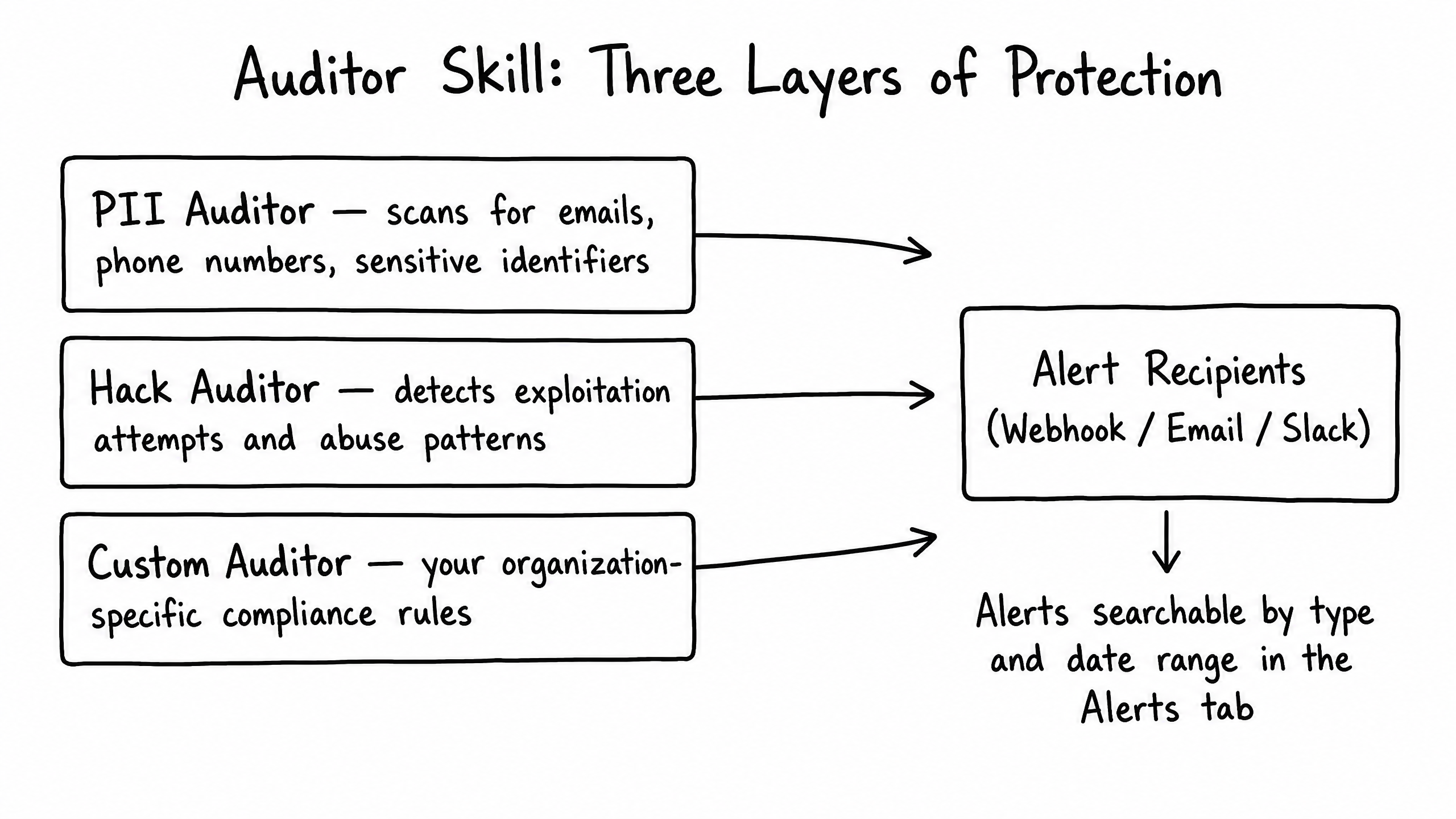
How it works
Review conversations for policy concerns.
Video overview
Key features
Prerequisites
Before changing this skill, arrange a policy owner and synthetic examples with no real sensitive data.
Fields on the form
Auditors; Auto Assign Conversation (choose a user); Recipients, each with a Channel and Recipient (+ Add Recipient). The Alerts tab lists alerts with View in Copilot.
How to configure it
In raia CX, open Agents, select the intended agent, then open Skills.
- Highlight 1: Agents
- Highlight 1: Skills
- 01
Open the Auditor Skill, Configuration tab, and choose which auditors to turn on. Enable PII Auditor looks for personal information, such as card numbers. Enable Hack Auditor looks for attempts to trick the agent into ignoring its instructions. Enable Custom Auditor looks for anything you describe in Prompt, for example “Flag any conversation where a customer mentions a lawsuit or threatens to cancel.”
Auditor → Configuration: the three auditor switches, not recipients. - Highlight 1: Enable PII Auditor
- Highlight 2: Enable Hack Auditor
- Highlight 3: Enable Custom Auditor
Auditor: Enable Custom Auditor reveals Prompt. The fictional draft was never saved or executed; reload restored Custom to disabled. - Highlight 1: Enable Custom Auditor
- Highlight 2: Prompt
- 02
Optionally choose Auto Assign Conversation, add Recipients (Channel and Recipient), then click Save when approved. Check the Alerts tab and use View in Copilot to review a flagged conversation.
Choose Channel and an approved Recipient, then select Save. The example address is fictional; use your own approved destination. - Highlight 1: Channel
- Highlight 2: Recipient
- Highlight 3: Save
- 03
The Auditor flags conversations and alerts your recipients so someone can review them in Copilot; don’t rely on it to hide or block messages. Recommended test: use a made-up policy concern and check the alert and the conversation.