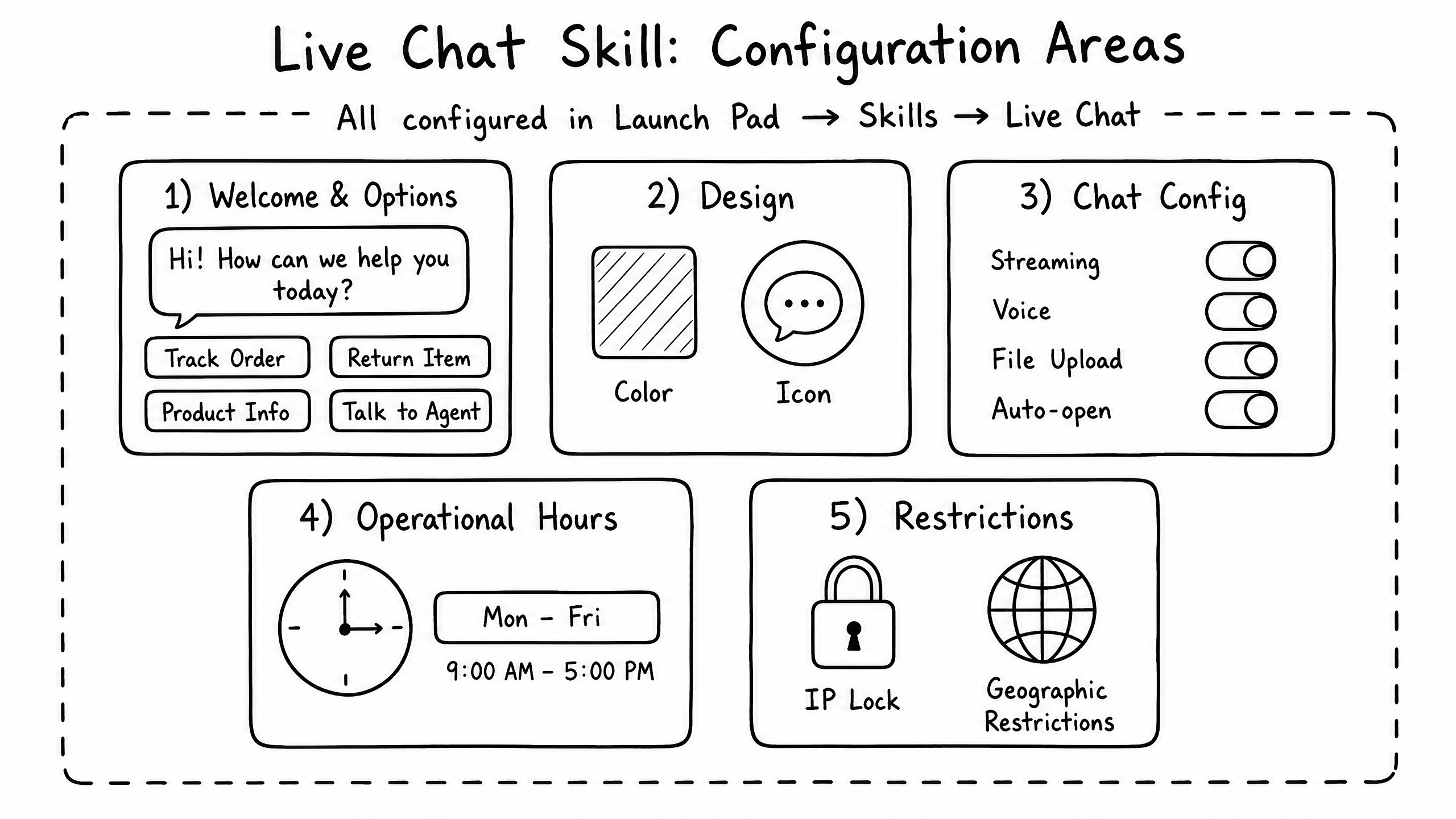
How it works
The Live Chat skill allows you to deploy your raia AI agent directly onto your website or web application via a customizable chat widget. It serves as the primary inbound communication channel for most support and sales use cases.
Key features
Custom Branding
Match the widget to your brand colors, logo, and typography.
Welcome Messages
Configure proactive greeting messages to engage visitors immediately.
Identity Passing
Use SET_USER to pass authenticated user data (name, email, ID) to the agent for personalized responses.
Human Handoff
Seamlessly transition from the AI agent to a human operator in Copilot when needed.
File Uploads
Allow users to upload images or documents directly within the chat interface.
How to configure it
- 01
Enable the Skill: Navigate to your Agent in Launch Pad, go to Skills, and toggle on 'Live Chat'.
- 02
Customize Appearance: Set your primary color, bot avatar, and welcome message in the configuration panel.
- 03
Generate Security Key: If using the JS SDK (recommended), generate a Security Key to prevent unauthorized usage of your agent ID.
- 04
Embed the Code: Copy the provided JavaScript snippet and paste it into the <head> of your website.
Complete configuration reference
This guide covers every setting available in the Live Chat configuration panel, organized exactly as it appears in the raia platform.
Content Tab
Define what users see and interact with during the conversation. Manage the messages and interactive elements that shape the chat experience.
Welcome & Entry
| Setting | Description |
|---|---|
| Welcome screen first line | Optional shorter line shown above the main welcome text (e.g., "Hi, I'm raia."). |
| Welcome screen second line | Main welcome text shown when users first open the chat (e.g., "Are you ready to build your Agentic Workforce?"). |
| Disclaimer | Optional informational notice displayed on the Live Chat welcome screen before a conversation begins. Supports Markdown. |
| Main Button Label | Text displayed on the primary button used to start the chat (e.g., "Ask me Anything"). |
| Main Button Subtext | Additional text displayed under the main button to clarify its purpose. |
| Links | Add quick-access URLs (e.g., Help Center, Pricing) to the welcome screen. |
Predefined Conversation Elements
| Setting | Description |
|---|---|
| Intro Message | Introductory text displayed before the user starts a conversation. Hidden after the first user message or when predefined options are shown. |
| Predefined options 1–4 | Up to four quick-tap suggestion buttons for common questions (e.g., "Tell me more about your Company", "How do I sign up?"). |
| Chat footer | Optional text shown below the chat input (for example, a privacy policy notice or link). Supports Markdown. |
In-Chat Buttons
Configure interactive buttons that appear during the conversation based on specific triggers.
| Property | Description |
|---|---|
| Button Type | Choose from Open URL, Trigger Prompt, Trigger Webhook, or Trigger Escalation. |
| Button Appearance | Control when the button is visible (Always, Once per session, Hide after click). |
| Button Style | Customize the button's color, icon, and text. |
Configuration Tab
Control how the chat operates. Configure the core functionality and behavior of your chat system.
Chat Behavior
| Setting | Description |
|---|---|
| Default Page | Specifies which chat screen is shown when the chat is opened (Home, Chat, or Voice Chat). |
| Automatic Open Chat Mode | Controls whether the chat opens automatically when a user visits the page (Off, Once per session, Always). |
| Auto Open Delay (seconds) | Defines how long the system waits before automatically opening the chat after the page loads. |
| Message length limit | Maximum number of characters allowed per user message. |
| Citation Enabled | Allows AI responses to include references or citations to source documents. |
| File Upload Enabled | Allows users to upload files during the conversation. |
| Show System Messages | Controls whether system-generated messages (such as chat status updates, escalation notices, or session changes) are displayed in the conversation interface. |
| Links target | Controls how welcome screen links open when clicked (New tab, Same tab). |
AI & Processing Controls
| Setting | Description |
|---|---|
| Use Current Page Text | Allows the AI to use the content of the current webpage as additional context when generating responses. |
| Streaming Chat Enabled | Displays AI responses progressively in real time as they are generated. |
| Reasoning label for Streaming Chat | Defines the label shown when AI reasoning steps are displayed during streamed responses (e.g., "Thinking..."). |
| Reasoning details enabled | Controls whether detailed AI reasoning generated by the model is visible to users. |
Communication Features
| Setting | Description |
|---|---|
| Voice Chat Enabled | Allows users to interact with the agent using voice input and audio responses. (Requires a configured Voice Skill). |
| Voice Chat Subtitles Enabled | Displays text subtitles during voice conversations to improve accessibility and clarity. |
Conversation Lifecycle
| Setting | Description |
|---|---|
| Auto Complete Ended Chat | Automatically marks a conversation as "complete" when the conversation ends, whether manually or due to a timeout. |
| Auto Archive Chat | Enables automatic archiving of conversations after a period of inactivity. |
| Auto Archive Chat Timeout (Minutes) | Defines how long a conversation must remain inactive before it is automatically archived. |
Pre-Chat & Availability Tab
Manage when your chat is accessible and what information is collected from users before they start a conversation.
User Information
| Setting | Description |
|---|---|
| Required User Information | Requires users to provide predefined personal information before starting a conversation. |
| Required User Information Label | Defines the label or prompt shown to users when requesting required personal information (e.g., "Let me know who I am speaking with..."). |
| Fields Builder | Add, reorder, and configure fields (First Name, Last Name, Email, Phone Number, Company, or Custom text/select fields). Set each field as Required or Optional. |
Conversation Information
| Setting | Description |
|---|---|
| Required Conversation Information | Requires users to provide information about their request or topic before the conversation begins. |
Operational Dates & Hours
| Setting | Description |
|---|---|
| Limit unavailable dates | Enables restrictions on when the chat is available based on specific dates. Add dates to block out holidays or closures. |
| Unavailable Message | Defines the message shown to users when they attempt to start a chat on an unavailable date. |
| Limit chat hours | Enables restrictions on when the chat is available based on configured operating hours. |
| Start Time / End Time | Set daily operating hours (Eastern Time). |
| Available Days | Checkboxes for Monday–Sunday. |
| Offline Message | Defines the message shown to users when they attempt to start a chat outside the configured operating hours. |
Security & Restrictions
| Setting | Description |
|---|---|
| Email Verification Required | Enforces OTP email verification before starting a chat. |
| Phone Verification Required | Enforces OTP SMS verification before starting a chat. |
| Security Key Required | Requires a valid security key (JWT/HMAC) to initialize the chat. |
| IP Whitelist | Restrict chat access to specific IP addresses. |
| Geographic Restrictions | Block or allow access based on the user's country. |
Design Tab
Customize the visual appearance of the chat widget and launcher to match your brand.
Launcher
| Setting | Description |
|---|---|
| Launcher Display Style | Choose whether the launcher shows an icon, text, or both. |
| Launcher Shape | Select the shape of the launcher (Circular, Rounded, Square). |
| Launcher Size | Set the size of the launcher (Small, Medium, Large, Custom px). |
| Chat Icon | Upload an image to be used as the avatar inside the live chat window and the icon on the chat launcher. |
| Logo Fit | Choose how the logo fits within its container (Cover, Contain). |
| Custom Launcher Color Mode | Same as chat widget (Light/Dark/System) or custom. |
| Launcher Attention Effect | Subtle animation (Pulse) on the launcher to draw the eye. |
Next to Launcher
| Setting | Description |
|---|---|
| Content next to launcher | Choose what appears next to the launcher: suggestion chips, a proactive message bubble, or nothing. |
| Proactive message | The text shown in the proactive bubble (e.g., "Hey! Can I help answer any questions?"). |
| Show after (seconds) | Delay before the proactive message appears. |
Appearance
| Setting | Description |
|---|---|
| View Mode | Choose the view mode for live chat (Popup or Sidebar). |
| Popup Size | If View Mode is Popup, choose the size (Small, Medium, Big, Full Height). |
Theme Settings
Customize specific colors using HEX codes for both Light and Dark modes.
| Element | Description |
|---|---|
| Greeting Title Size | Controls the font size of the greeting title. |
| Greeting Title Color | Color of the greeting title text. |
| Chat Home Background Color | Background color of the welcome screen. |
| Greeting Line 1 Text Color | Color of the first line of greeting text. |
| Button Background Color | Background color for buttons on the welcome screen. |
| Primary CTA Icon Background & Foreground Color | Colors for the main chat action button. |
| Logo Background Color | Background color behind the chat icon. |
| Button Title & Subtitle Color | Text colors for predefined options and main buttons. |
| Link Title Color | Color for URLs on the welcome screen. |
| Chat Message Background Color | Background color of the chat conversation area. |
| Disclaimer Text Color | Color of the disclaimer text. |
| Background Image | Optional URL for a custom background image. |
Frequently asked questions
Can I use the Live Chat widget on multiple domains?
Yes — the widget embeds on any domain, and you can restrict allowed domains in the security settings to prevent unauthorized embedding.
Does the chat history persist if the user refreshes the page?
Yes. By default the widget uses local storage to maintain the conversation thread across page reloads within the same session.
How do I pass user information if they are logged into my site?
Call window.raia.SET_USER({ email: 'user@example.com', name: 'John' }) in your frontend code after the user authenticates.