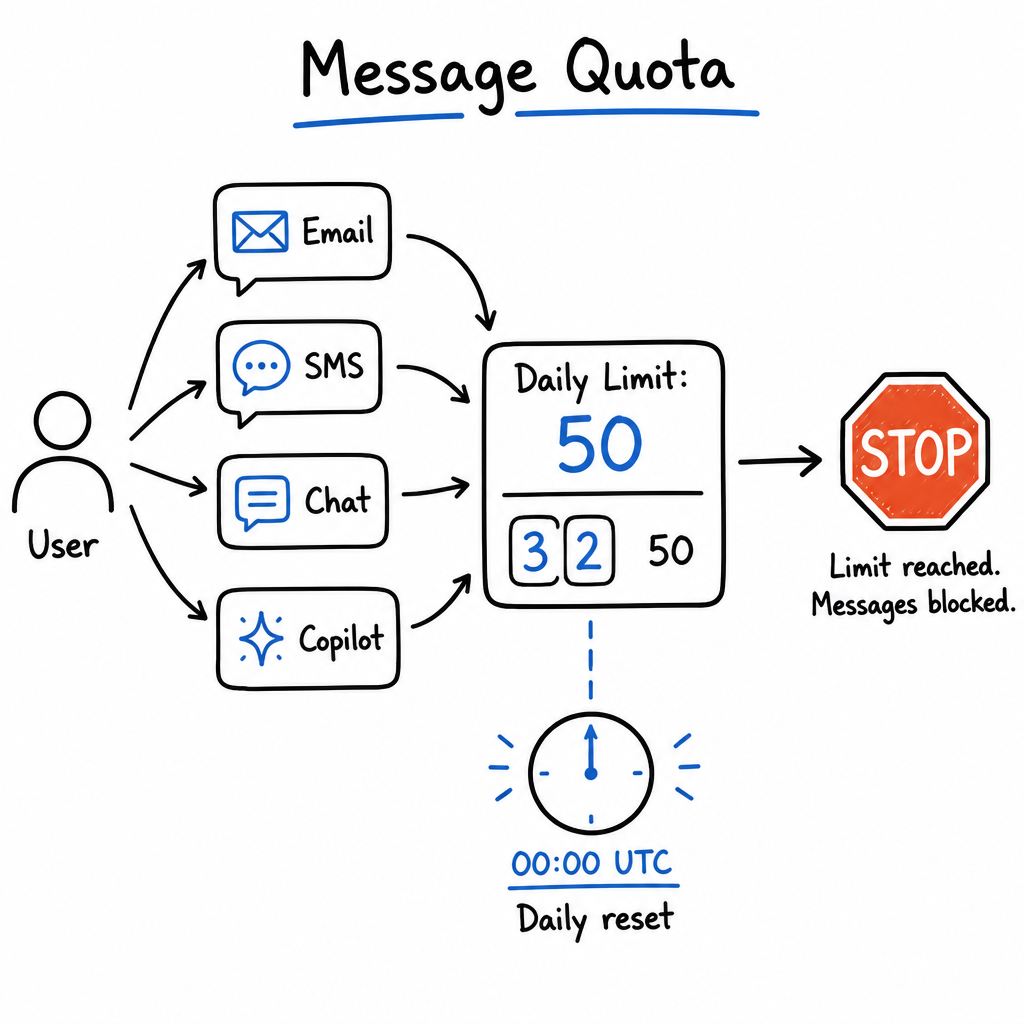
How it works
The Message Quota skill is a cost-control and abuse-prevention feature that sets a daily inbound message limit per user. Messages from Email, SMS, Live Chat, Copilot, and every other integrated channel count toward one shared daily limit. When a user exceeds the limit, the agent pauses processing for that user and returns a polite auto-reply until the quota resets at 00:00 UTC. Admins can override the limit per user, temporarily disable it for 24 hours, and monitor active quota alerts from a dedicated tab.
Key features
Cross-Channel Tracking
A user's quota is tracked globally across every channel they use — Email, SMS, Live Chat, Copilot, and more — against a single shared daily count.
Per-User Overrides
Grant specific users a higher limit, a lower limit, or unlimited access without changing the agent-wide default.
Temporary 24-Hour Disables
Grant a user unlimited access for exactly 24 hours — useful for VIP support or active troubleshooting sessions.
Automated Quota Alerts
When a user hits their limit, an active Conversation Alert is generated so the admin team is notified immediately.
Graceful Blocking
Blocked users receive an automatic reply explaining exactly how long they must wait before sending their next message.
Automatic Daily Reset
All counters reset at 00:00 UTC every day, and raising the global limit automatically resolves alerts for users now back under the cap.
How to configure it
- 01
Enable the base skill: Open your Agent's Skills tab, locate the Message Quota card, click SET UP, and toggle Enable Message Quota to On.
- 02
Set the global daily limit: Enter a Daily message limit (e.g., 50) as the default applied to all users interacting with this agent, then Save.
- 03
(Optional) Turn on per-user custom limits: Toggle Enable per-user custom limits to unlock the Users tab for exception management.
- 04
Manage exceptions from the Users tab: Use the Actions menu on any user to Set custom limit, Set as unlimited, Temporarily disable limit (24 hours), or Remove custom limit.
- 05
Monitor the Alerts tab: Review which users have been blocked and how many messages they sent; raising the global limit auto-resolves alerts for users now under the new cap.
Frequently asked questions
How is the limit counted across channels?
A user's daily count is a single shared total across every channel they use — Email, SMS, Live Chat, Copilot, and any other integrated channel — not per channel.
When do the daily counters reset?
All counters reset at exactly 00:00 UTC every day. The blocked-user reply tells each person how many hours and minutes remain until their reset.
What happens when a user hits their limit?
The agent blocks the message from reaching the LLM, creates a Conversation Alert for admins, and auto-replies with: 'You've reached your daily message quota. You can send your next message in [X hours and Y minutes].'
Can I give one user unlimited access without changing the global limit?
Yes — enable per-user custom limits, then use the Users tab Actions menu to Set as unlimited for that user, or Temporarily disable limit to grant unlimited access for 24 hours.
What limit should I start with?
For public-facing customer support agents, 20–50 messages per user per day is usually enough to stop abuse while allowing normal conversations. Monitor the Alerts tab and adjust if legitimate users are hitting the cap.