Connectors pull content from external systems into a project folder so it can be converted, trained, and processed like any uploaded document. 30+ pre-built integrations cover storage, knowledge bases, CRMs, ticketing, engineering tools, meetings, the web, and MCP bridges. Each connection is per-user, so your credentials stay yours.
In this section
- Authenticate a connector by API key, token, or OAuth and pick a target folder.
- Choose import scope, combined vs. individual output, and auto-push to agents.
- Read Sync History, cancel a long import, and resume where it left off.
- Use the Agent Access (MCP) tab to expose a connector's live tools to an agent.
What's inside
- 01
Connecting and importing
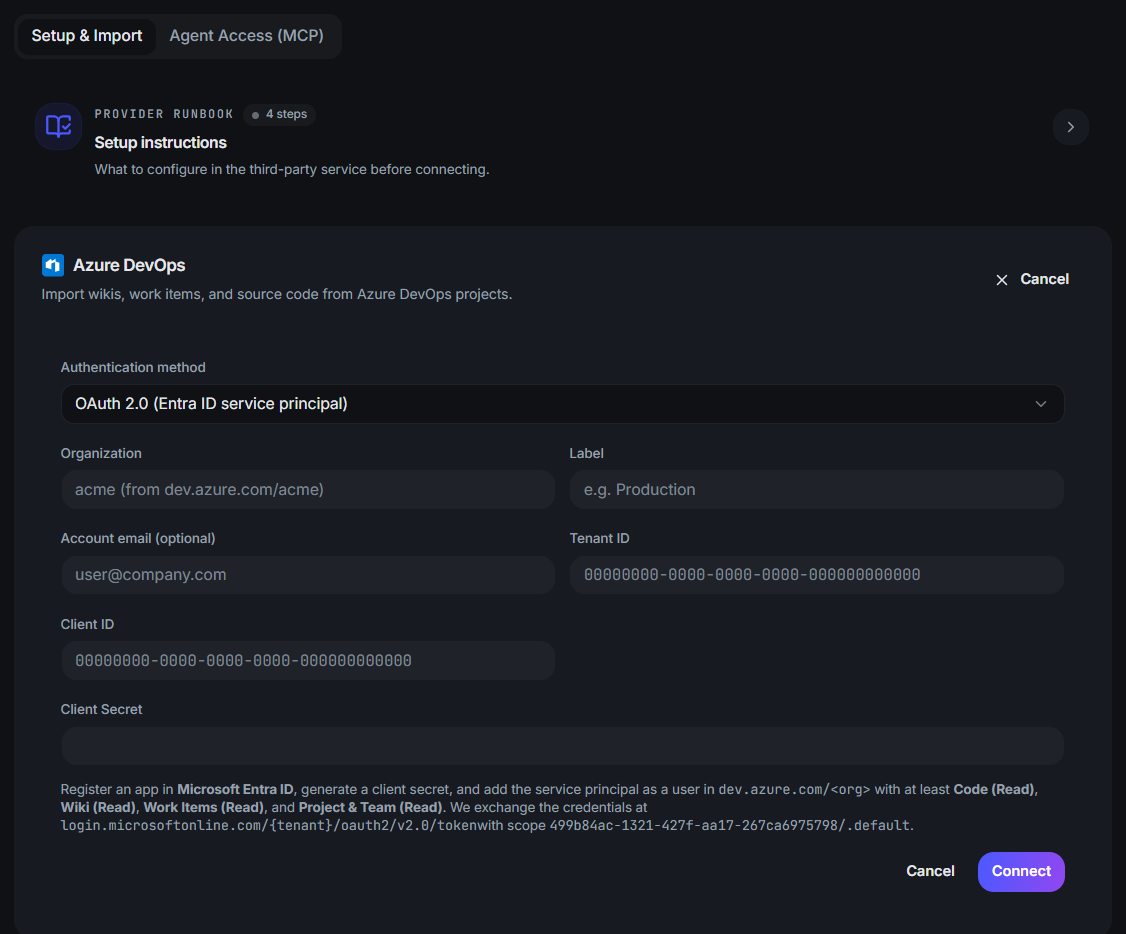
Open a connector card, complete the connect flow (API key, token, or OAuth), then choose what to import and which project folder it should land in. Imported files behave exactly like uploads — convert, train, and process them normally. Manual re-sync refreshes content on demand, and disconnecting runs through the backend so it always succeeds.
- 02
Output shape and auto-push
Where a connector supports it (TeamSupport, Confluence, and others), choose Combined output — one merged Markdown file, sharded around ~10MB — or Individual files, and toggle auto-push-to-agents so new imports queue for training automatically.
- 03
Sync history and cancellation
Every connector records sync history in a shared format: when each import ran, how many items it touched, and any errors. Long-running imports can be cancelled mid-flight, and most connectors resume from where they stopped.
- 04
MCP Server connector
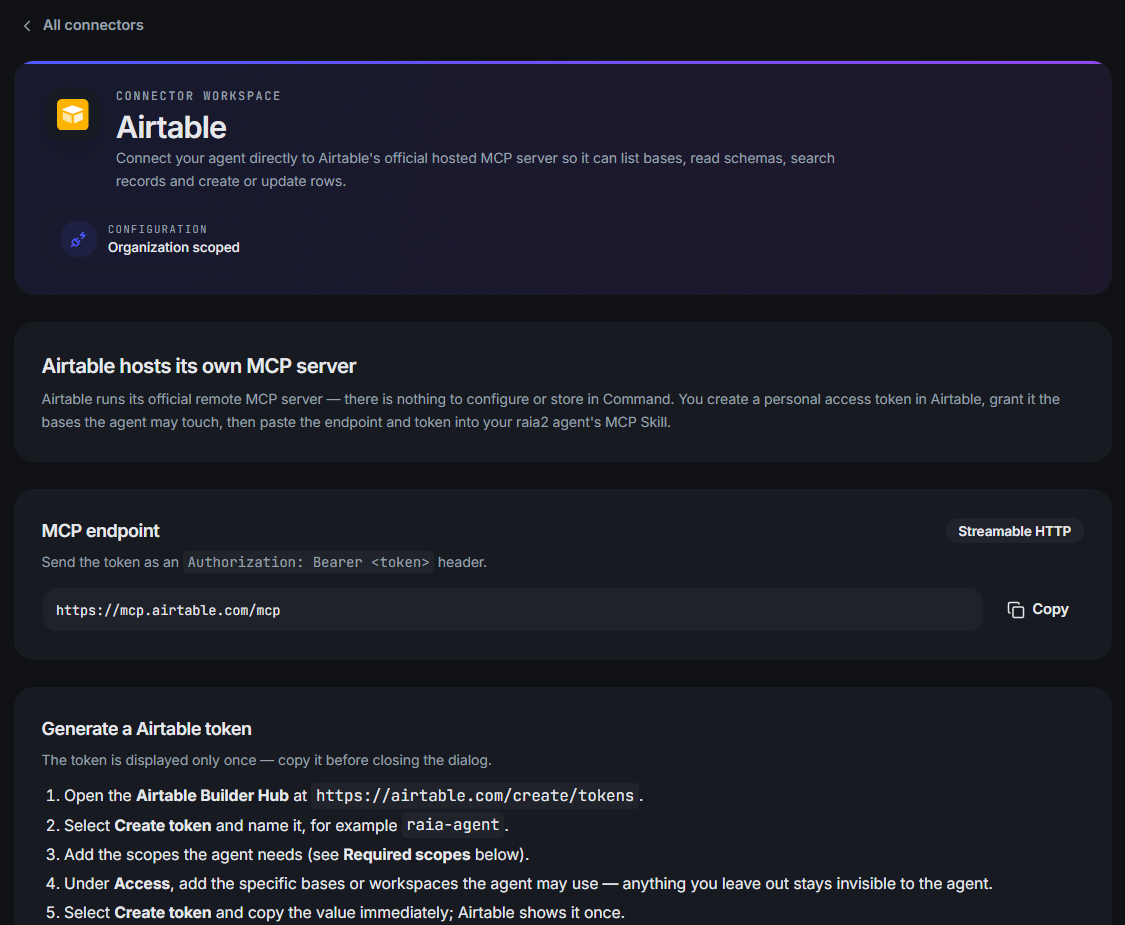
Point Command at any remote Model Context Protocol server over Streamable HTTP and ingest its output as Markdown — either by picking resources from resources/list, or by calling tools and saving the responses.
- 05
Agent Access (MCP)
Salesforce, Zendesk, Zoho, HubSpot, Jira, Bitbucket, Gmail, tldv, and Zapier expose an Agent Access tab that reuses the existing connection's credentials. Tools are filtered by the scopes the token actually holds, and an optional 'Allow agent to create/update records' toggle gates write tools.
- 06
Wiring a connector to an external agent
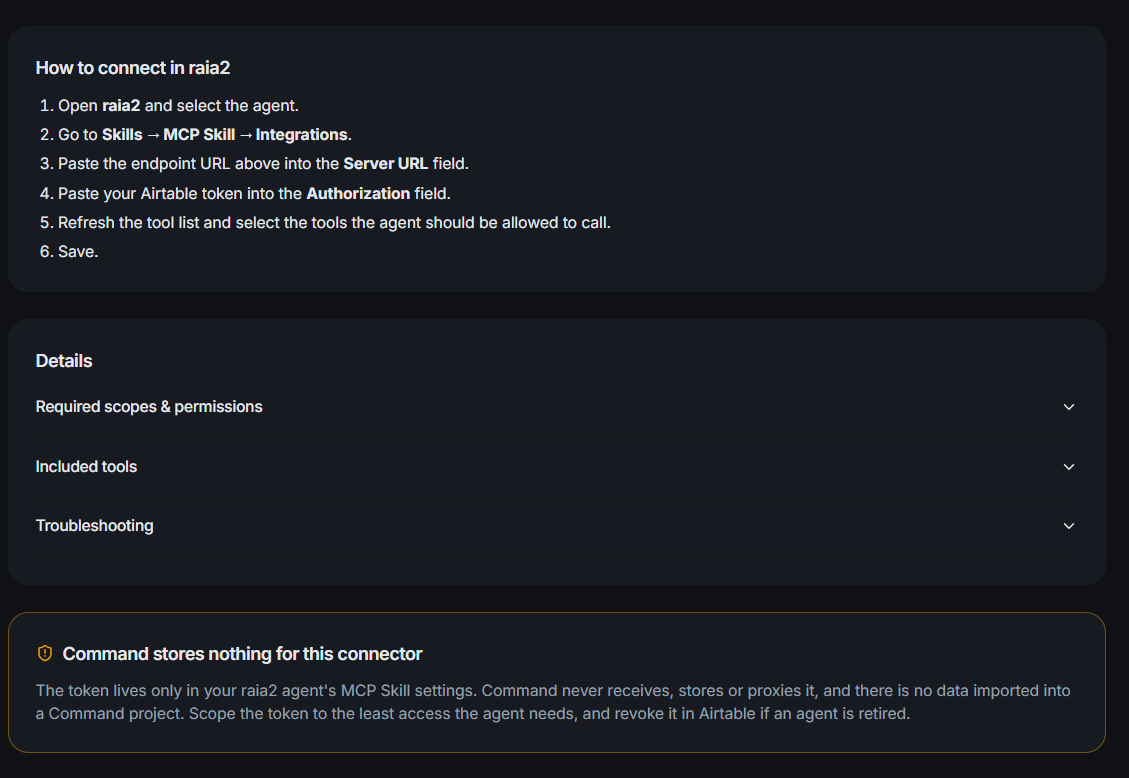
Option A (recommended): on the connector's page in Command, click Connect to <agent> — a key is minted, the MCP server is registered on the agent, and the binding is tracked for one-click revoke. Option B: create a key from the connector's Agent Access tab and paste the JSON config into the agent's MCP servers list. Revoking the key from the connector page or Settings → Action Keys cuts access immediately.
- 07
File Drop
File Drop gives an outside sender a private upload address for one chosen Knowledge folder, without requiring a Command account. Create it from Connectors, copy the one-time token, and rotate or revoke it whenever needed. Accepted files follow the normal validation, conversion, privacy scan, retention, and optional agent-training flow. The delivery log records accepted and rejected attempts with a clear reason.
At a glance
| Category | Examples | Typical use |
|---|---|---|
| Storage | Google Drive, OneDrive, SharePoint, Dropbox | Document libraries |
| Knowledge bases | GitBook, Confluence, HelpJuice, RoboHelp, ServiceNow | Published documentation |
| CRM | Salesforce, HubSpot | Customer context and cases |
| Support | Zendesk, Zoho Desk, Freshdesk, TeamSupport, Autotask | KB articles and ticket history |
| Engineering | GitHub, Bitbucket, Azure DevOps, Jira | Repos, wikis, and issues |
| Meetings | Microsoft Teams transcripts, tldv | Meeting knowledge |
| Web & endpoints | Firecrawl, Basic Web Scrape, HTTP Endpoint, SOAP Endpoint | Sites and custom APIs |
| Agent bridges (MCP) | MCP Server, Zapier, Gmail, raia CX | Live tools instead of imports |
Related
- → Connectors Directory (all connectors)
- → Connectors & Integrations module
- → Setup guide: SharePoint (Sites.Selected)
- → Setup guide: Zoho (self-client OAuth)
- → Setup guide: Zendesk (OAuth)
- → Setup guide: GitBook (access token)
- → Setup guide: Google Drive (OAuth)
- → Setup guide: Salesforce (User OAuth)
- → Setup guide: Salesforce (Client Credentials)