Tables turn spreadsheet data into structured, searchable records that people can inspect and approved AI agents can query precisely. They preserve rows, column types, filters, totals, and stable references rather than treating the spreadsheet as a document.
In this section
- Choose Tables for structured records such as invoices, inventories, transactions, contacts, and price lists.
- Import and review CSV, TSV, or Excel data before publishing it.
- Manage data, schemas, instructions, privacy review, re-imports, versions, and rollback.
- Give external AI tools read-only access to selected Tables through a scoped Tables MCP link.
What's inside
- 01
Importing and reviewing a spreadsheet
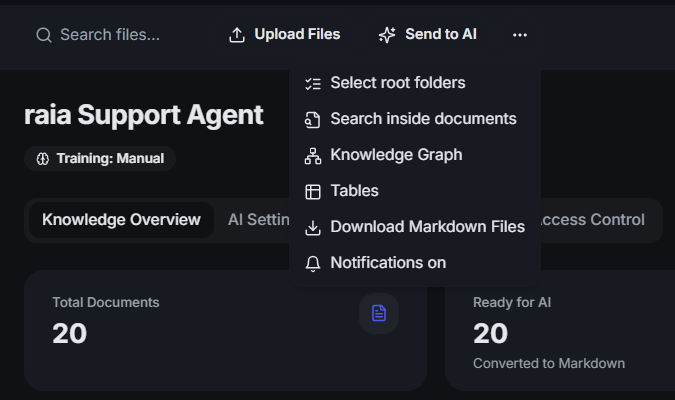
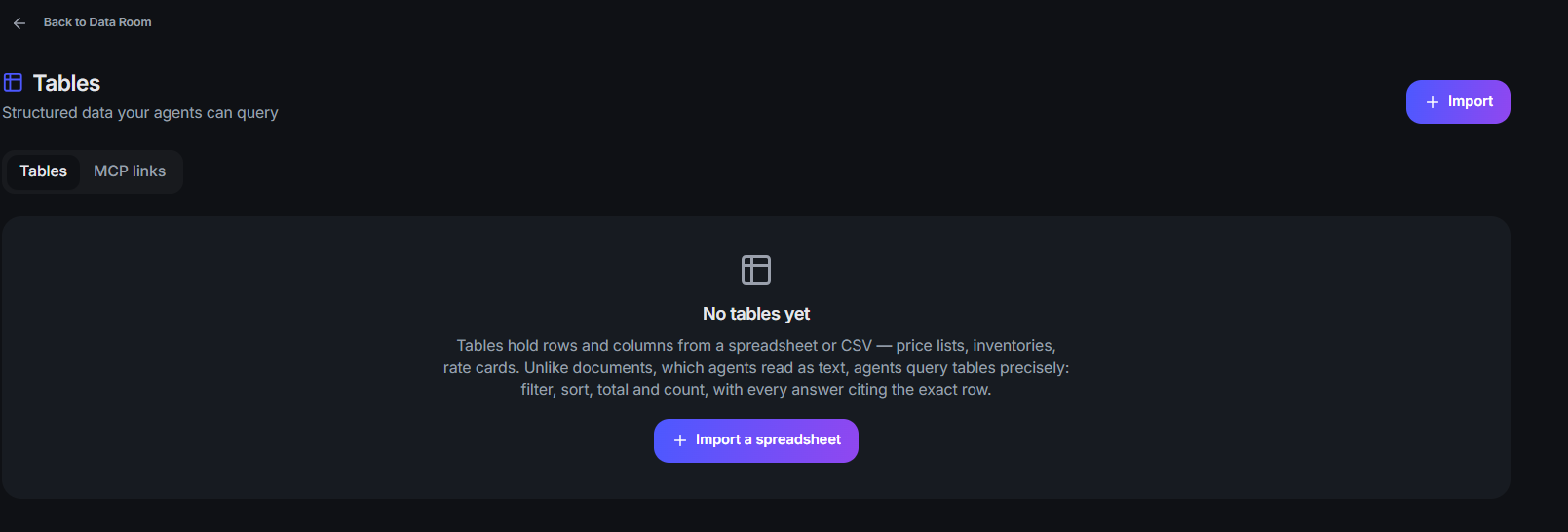
Open a Knowledge area, choose Tables, then Import table. Command accepts CSV, TSV, XLSX, XLSM, and XLS files up to 25 MB, 50,000 rows, and 200 columns. Choose one or more workbook sheets; each selected sheet becomes a separate Table. Macros are never run. Command proposes names, types, descriptions, identifiers, and cleaning rules for review, with a basic manual proposal available when AI analysis cannot run.
- 02
Publishing and status
Review the cleaned preview and turn suggested cleaning rules on or off before publishing. Column system names stay stable for agent queries and citations. Larger Tables can finish publishing in the background; the list shows whether each import is analyzing, waiting for review, publishing, ready, or failed.
- 03
Data tab
Browse 100 rows at a time, sort by column, and apply type-aware conditions including equals, contains, starts with, greater than, less than, one of, and is empty. Word search finds whole words across text columns. CSV export follows the active filters and word search; editors can select rows or matching results for deletion.
- 04
Schema and agent guidance
The Schema tab is the data dictionary: maintain display names, descriptions, data types, units, synonyms, and the identifier column, then download it as Markdown or JSON. In Settings, rename the display name without changing the stable system name and add Instructions for agents explaining what the Table contains and when it should be used.
- 05
Visibility, privacy, and testing
A Table must be Ready, marked Visible to agents, and granted to the exact Tables MCP link before an external agent can read it. Command reviews Table data for possible personal or sensitive information; high- or critical-severity findings keep it hidden until an editor reviews the masked finding and records an explicit acknowledgement. Test with an agent lets you inspect the request and returned rows before connecting another tool.
- 06
Versions, re-imports, and rollback
Re-import publishes updated source data as a new version after you review added, removed, renamed, or changed columns. Version history records row count, date, status, privacy-review status, size, and warnings. Rolling back restores the selected published version exactly, including rows or columns changed later.
- 07
Tables MCP links
Create a separate read-only connection for an external AI tool, name it, and grant only selected Ready Tables. The URL and key are shown once. Change table grants at any time, rotate a key to stop the old one, temporarily disable a link, re-enable it, or delete it permanently. Tables links are separate from the MCP servers used for Data Room documents.
At a glance
| Problem | What to check | Next step |
|---|---|---|
| Analysis skipped | AI analysis was unavailable or the organization reached its token limit. | Review and complete the basic proposal manually |
| Import refused | Format, size, row, column, or sheet selection does not meet the import limits. | Use CSV, TSV, or Excel under 25 MB, 50,000 rows, and 200 columns |
| Agent cannot find a Table | The Table is not Ready, visible, or granted to that connection. | Check all three access conditions |
| Agent selects the wrong Table | The description or agent instructions are too broad. | Clarify what the Table contains and when to use it |
| Results look outdated | The re-import may not have finished or become active. | Confirm the newest version is Ready and active |
Important
Document Markdown encryption does not cover Table rows in this release. When document encryption is enabled, Command displays this limitation during import and requires acknowledgement before publishing.