Command's AI workflows are three operations that run in order: convert documents to Markdown, upload that Markdown into an agent's vector store (training), and process documents as prompts to produce reports. Each project decides whether these run Manually or Automatically.
In this section
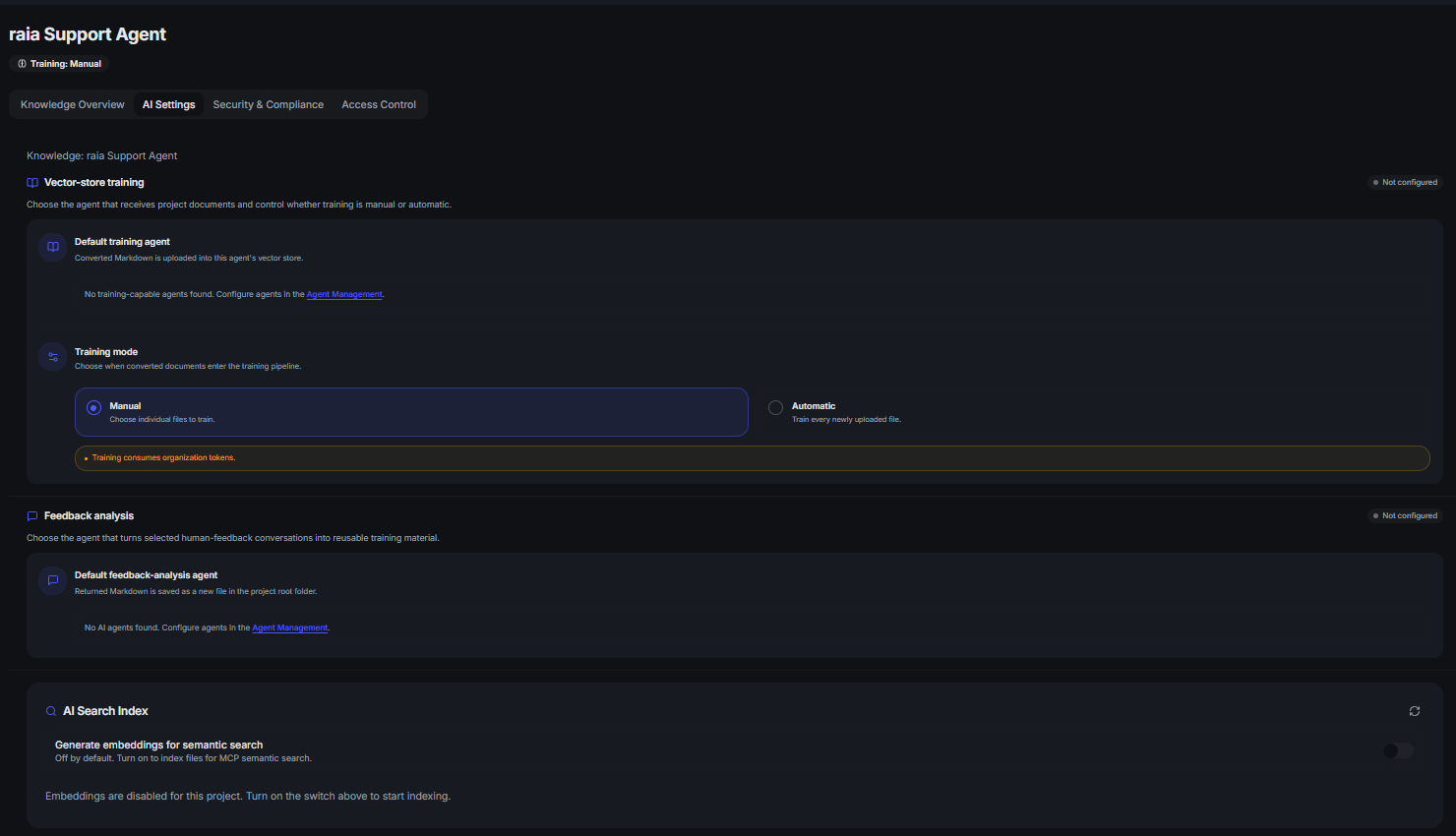
- Choose Manual or Automatic mode per project for conversion and training.
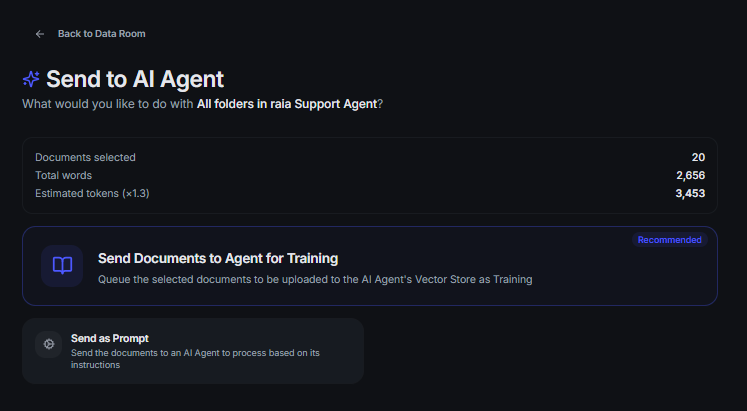
- Run Convert, Upload to Vector Store, and Process from Send to AI.
- Stay inside batch and context-window budgets on large jobs.
- Monitor the AI Queue and retry failed jobs with the real error message.
What's inside
- 01
AI Settings per project
Automatic Conversion converts new uploads to Markdown immediately; Automatic Training adds a file to the knowledge base as soon as conversion finishes. Modes can be switched any time, and the project overview shows badges for whichever are active.
- 02
Convert to Markdown
The first step for everything else. Manual: select files → Send to AI → Convert to Markdown. Automatic: every new upload converts on arrival. The project's conversion agent comes from AI Settings (new projects inherit the org default), and files land on AI Ready — or Conversion Failed with details.
- 03
Upload to Vector Store (training)
Pushes converted Markdown into the agent's searchable knowledge base. Unconverted selections are converted first automatically. Only agents with 'Allow upload of Documents into Vector Store' appear as targets. Training runs through a database-driven queue that agents poll for work.
- 04
Process documents (send as prompt)
Sends documents to an agent as a prompt — summary, analysis, risk assessment, or any custom output. Choose individual files, multiple files, or entire folders, and run them All together as one prompt (batch) or Individually. Results appear as an AI Report on each file, plus a consolidated Batch Report, with copy / PDF / DOCX / Excel export.
- 05
Generate Agent Instructions
A third Send to AI action that drafts a complete system prompt from the documents you select. Fill in agent settings (name, role, audience, tone, objectives, guardrails, response format, language, example questions, custom instructions); an editable prompt assembles from those settings plus the combined Markdown of the selection. The result is saved as Markdown in an auto-created Agent Instructions folder at the project root.
- 06
Monitoring and retries
The AI Queue page lists active and completed conversion, training, and processing jobs across your projects. Failed jobs carry a specific error — hover the failed badge in the file list, or open the file drawer for the full Last Error and a Retry button.
- 07
AI folder reorganization
From AI Settings → Folders, project admins can ask an agent to propose a cleaner folder structure based on document labels and content. You review the suggestion and apply it as a single atomic change.
At a glance
| Limit | Value | Why it matters |
|---|---|---|
| Batch character budget | 800,000 characters per processing batch. | Split larger jobs into multiple batches |
| Instruction generation | Combined Markdown truncated to 600,000 characters. | Select the most representative docs |
| Selection warning | Selecting more than 100 files warns you before running. | Keeps jobs inside token limits |
| Token estimate | Roughly 1.3× word count. | Rough sizing before you submit |
Note
Files must be converted before they can be trained. If you train an unconverted selection, Command converts it first rather than failing the job.