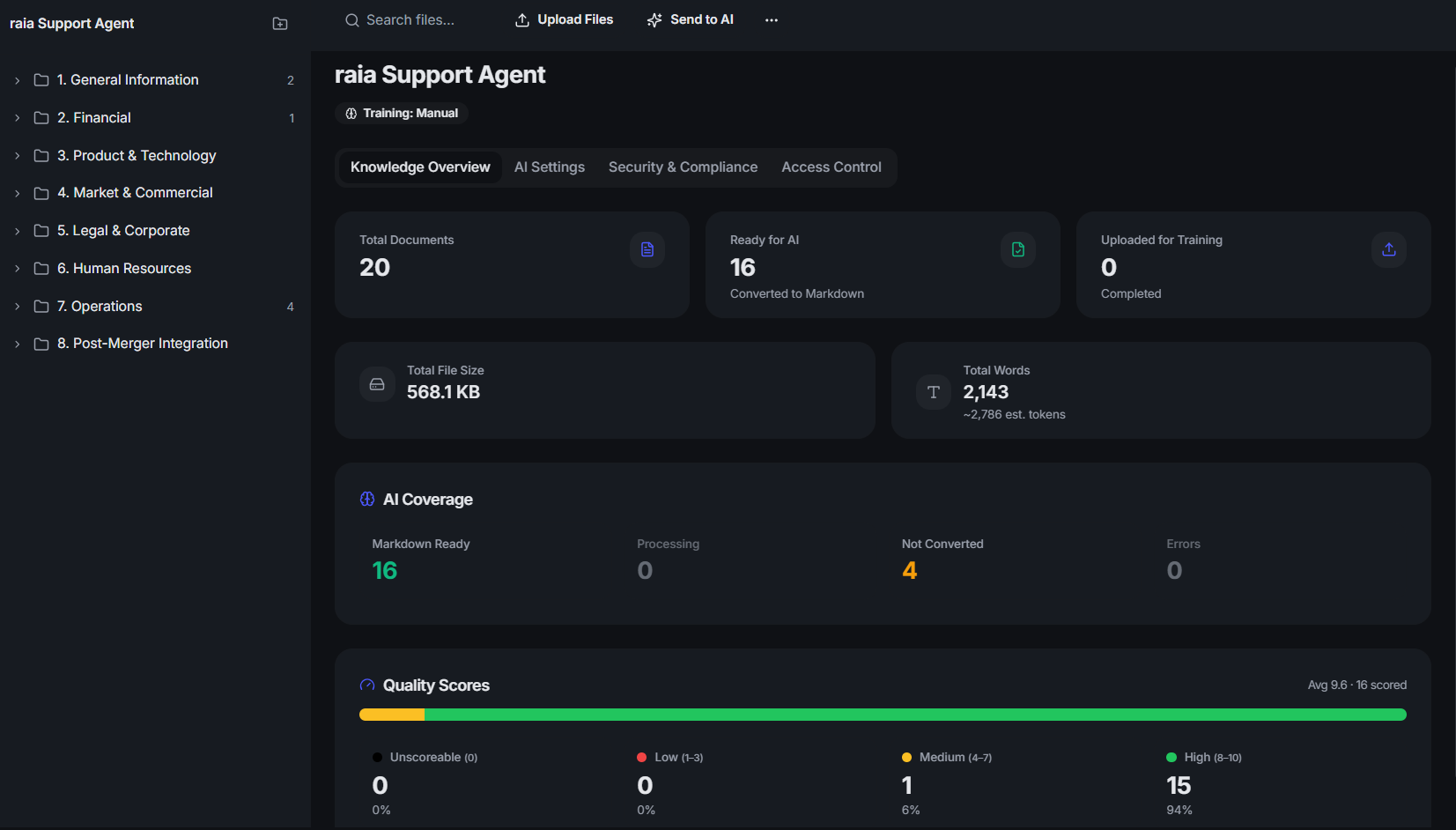
The Data Room is the file system of a project: a folder tree on the left, files on the right, and every AI action one click away. It is where documents are uploaded, classified, converted, previewed, searched, exported, and sent to agents.
In this section
- Navigate and administer folders, including Agent Output folders.
- Upload files, ZIPs, and large batches — and tune upload concurrency.
- Use Smart AI Upload to classify, title, and file documents automatically.
- Read file statuses, preview and export files, and run project-wide search.
What's inside
- 01
Folders
Nest folders to match your workflow. Admins can rename or recursively delete them. Agent Output folders — one per AI agent — appear at the top of the tree with a distinct icon. URLs carry the project and folder so any view is a shareable deep link.
- 02
Uploading files
Drag and drop, or use the Upload button. ZIP archives extract automatically, an upload queue shows per-file progress, and blocked types and oversized files are rejected before the transfer starts. Up to 500 files per batch.
- 03
Smart AI Upload
AI reads each document, generates a title and summary, and suggests the folder it belongs in. Large batches are processed in groups so nothing is missed. Dropping files onto the file list opens the AI Upload Drawer pre-filled with your selection rather than uploading blind.
- 04
Browser-side conversion
DOCX, CSV/TSV, and plain-text or code files (txt, md, json, yaml, xml, html, ts, py, sql, …) convert to Markdown in your browser — no conversion queue needed. PDFs, images, XLSX, PPTX, and legacy .doc files go through the standard pipeline.
- 05
Upload concurrency
The Upload Drawer lets you pick how many files upload in parallel: 1 (Safest), 3 (Balanced, default), 5 (Fast), or 8 (Maximum). The setting is saved per browser and applies to the drawer and the background queue.
- 06
Working with files
Click a file to open its detail drawer — metadata, notes, previews, PII findings, and actions. The row's 3-dot menu exposes Send to AI, Export, Document Report, Move, and Delete based on your permissions.
- 07
Previews, exports, and bulk Markdown
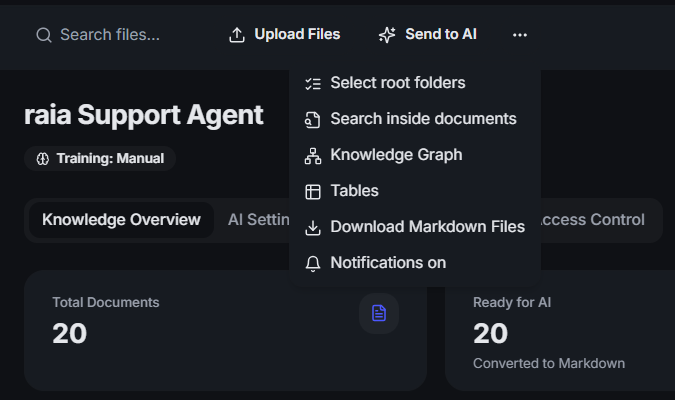
PDF, image, XLSX, and DOC/DOCX preview inline; Export produces document reports and formatted PDF, DOCX, or Excel output. Users with Read (Download) permission can download the Markdown of selected files as a ZIP, or the whole project via Download MD Project.
- 08
Search
Two searches: the inline toolbar search matches file names and titles only, while Project Search (/projects/:id/search) runs full-text search across the converted Markdown of every non-archived file — ranked by token frequency, with a highlighted snippet. Clicking a result opens the AI Report and scrolls to the match. Case-insensitive, minimum 2 characters, up to 6 tokens.
At a glance
| File status | What it means | What to do |
|---|---|---|
| Queued | The file is waiting for a pipeline slot. | Nothing — it will start shortly |
| Converting | The file is being turned into Markdown. | Watch the list; it refreshes every 10s |
| AI Ready | Markdown exists and the file can be trained or processed. | Send to AI → train or process |
| Training | Markdown is being uploaded into the agent's vector store. | Check the AI Queue for progress |
| Processing | The file is being sent to an agent as a prompt. | Open View AI Report when done |
| Conversion Failed | Conversion errored — the badge carries the specific reason. | Open the drawer for Last Error, then Retry |
Note
Bulk Send to AI resolves your entire selection — there is no hidden 1,000-file cap. Large folder trees are paginated automatically so every eligible file is included.