How it works
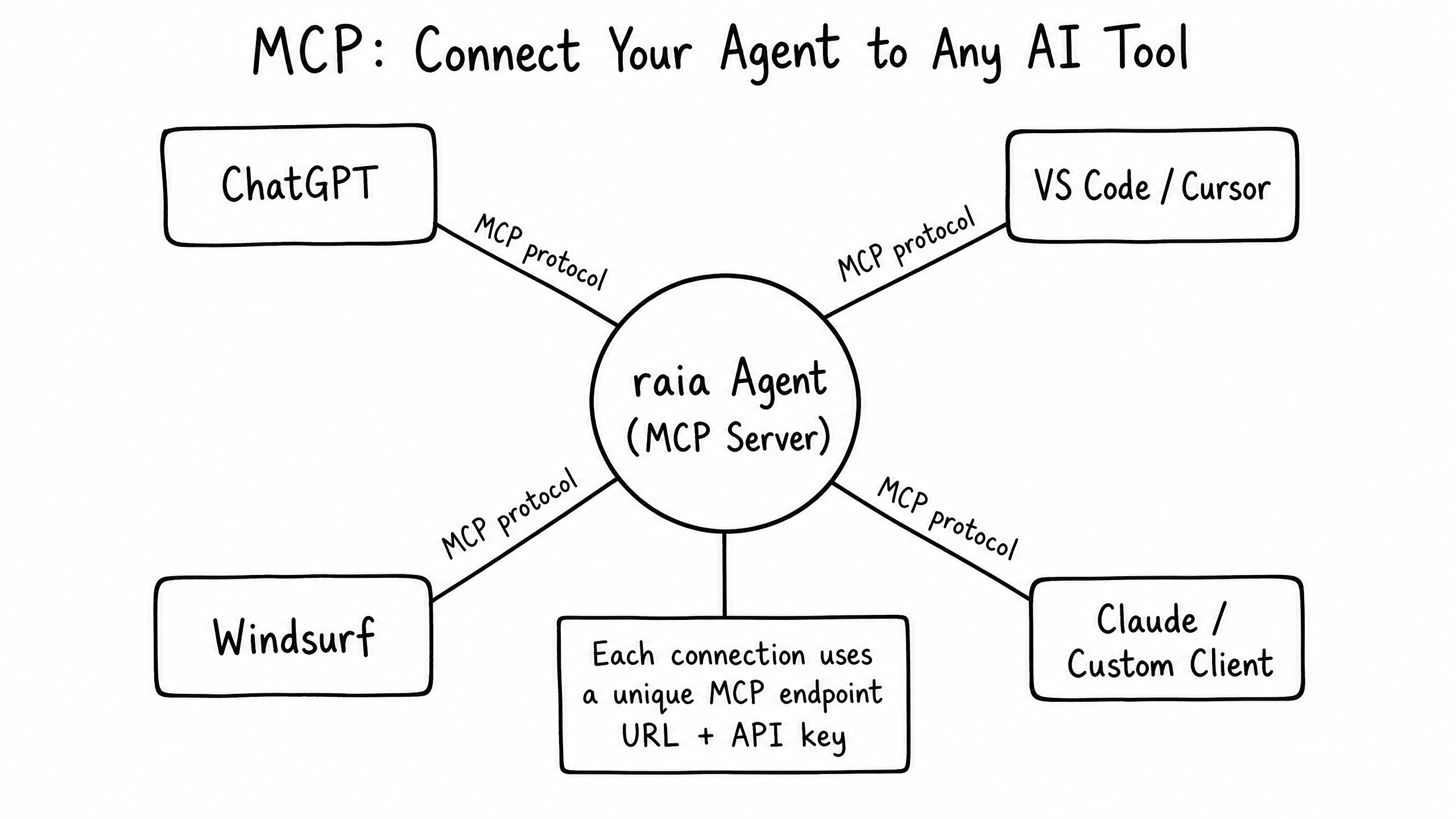
Let an external MCP client call your agent.
Key features
When to use
Let an external MCP client call your agent.
Prerequisites
Before changing this skill, arrange an approved client and an owner-approved knowledge-sharing scope.
Fields on the form
MCP Endpoint URL; a server description (sent to the MCP client as server metadata); a description for each tool (shown to the AI model). Authentication is either Header-based authentication — use the Secret Key as the Authorization header value, with Regenerate Secret Key — or OAuth, using the OAuth Registration URL with no headers.
How to configure it
- 01
In raia CX, open Agents, select the intended agent, then open Skills → MCP (add MCP if absent; older versions labelled it MCP Tools).
In Launch Pad, open Agents and choose the agent you want to configure. - Highlight 1: Agents
On that agent, open Skills. - Highlight 1: Skills
- 02
Select Edit and open the RAIA MCP tab for the incoming endpoint, Secret Key and OAuth Registration URL (the Integrations tab is for outgoing servers). If the MCP Skill is not set up yet, use Set up MCP Skill. Describe the server and its capabilities, and write a description for each tool saying when the AI should use it.
MCP before setup: RAIA MCP is incoming access; Integrations configures outgoing servers. - Highlight 1: RAIA MCP
- Highlight 2: Integrations
- Highlight 3: Set up MCP Skill
- 03
Choose Header-based authentication: use https://api.raia2.com/mcp with the Secret Key as a Bearer token. For OAuth use the per-agent OAuth Registration URL instead. Save; if you regenerate the key, update approved clients and verify their next request rather than assuming instant revocation.
Worked example
The examples use fictional data. Follow the same checks with approved, non-sensitive information for your own task.
Header-based authentication uses MCP Endpoint URL https://api.raia2.com/mcp with the Secret Key. OAuth uses the separate OAuth Registration URL for this agent. Keep the Secret Key hidden; never paste it into chat or documents.
MCP Skill authentication options. The Secret Key stays hidden. - Highlight 1: MCP Endpoint URL
- Highlight 2: Secret Key (hidden)
- Highlight 3: OAuth Registration URL
Example tool response from fictional practice content. Compare the returned facts with the source, not just the request status.
initialize                  → HTTP 200  protocolVersion "2025-11-25"
notifications/initialized   → HTTP 202
tools/list                  → HTTP 200  tools: ["query-agent"]
  inputSchema: prompt (string, optional)
               files (array, max 10; each needs download_url and file_id)
tools/call  query-agent     → HTTP 200
  - Return window: 23 days
  - Required accessory: Original power adapter
  - Demo reference: ORCHID-742
Use the tools and input schema your client actually discovers. Authentication and remote-server support differ between clients; follow the setup for the client you use.
- 04
Recommended test: inspect the client tool list and input schema, explicitly request the discovered tool, then compare its answer with fictional source content. Confirm your client supports the chosen authentication method.
Connecting external tools via OAuth or Bearer token
Current official ChatGPT web and Codex instructions
An external MCP client can request an answer from your raia agent. Check the client's current remote-server and authentication support; this guide does not establish compatibility with every client or a completed OAuth connection.
OAuth
In raia CX, open Agents, select your agent, then open Skills → MCP (add MCP if it is not listed yet; older versions labelled it MCP Tools). Select Edit, then open the RAIA MCP tab for the incoming endpoint, Secret Key and OAuth Registration URL; the Integrations tab is for outgoing servers. Copy the OAuth Registration URL for OAuth; it includes your agent ID. Header-based authentication instead uses https://api.raia2.com/mcp and the Secret Key as a Bearer token.
ChatGPT — web
In ChatGPT on the web, open Plugins, select the plus button, then Add custom MCP server. Enter the name and optional description. Under Connection choose Server URL and paste your agent's OAuth Registration URL. Configure OAuth, review the warning, select I understand and want to continue, then Create as a plugin. Install the plugin before using it. Workspace permissions and security restrictions apply.
OpenAI: custom MCP serverCodex — CLI
Codex configuration is separate: ChatGPT on the web does not read your local config.toml. For OAuth, configure the per-agent OAuth Registration URL, then run codex mcp login raia_agent. Check the client tool list after authorization. After login, request a tool call and check its result against your source.
[mcp_servers.raia_agent]
url = "https://api.raia2.com/mcp/<YOUR_AGENT_ID>"
codex mcp login raia_agentClaude / Cursor / Windsurf
For Claude, Cursor or Windsurf, follow that client's current remote-MCP instructions and use your agent's OAuth Registration URL when OAuth is supported. Inspect the requested permissions before allowing access. Settings and availability may differ; do not assume a local configuration file accepts a remote URL or that a restart is required.
Header-based authentication
For a client that supports Bearer authentication, use the header endpoint https://api.raia2.com/mcp. In Codex, bearer_token_env_var reads the key from an environment variable. Set RAIA_MCP_SECRET_KEY privately in your local environment; do not put the key in chat, a shared config file or version control.
[mcp_servers.raia_agent]
url = "https://api.raia2.com/mcp"
bearer_token_env_var = "RAIA_MCP_SECRET_KEY"Verify a tool call and its answer
- Open the connected client's tool list and inspect the discovered name and input schema. The connected client lists the tool names your server exposes. Use the name shown in that list; names can differ between servers.
- Explicitly select or request the discovered tool and provide a fictional question. For example, ask the client to use query-agent only if that name appears in its tool list. Verify that a tool call occurred, then compare the answer with your source document. Merely mentioning the agent does not guarantee tool routing or a correct answer.
- If no tool appears, check the endpoint, authentication and client availability, then refresh the client's tool list. If the answer is wrong or unsupported, compare it with the source and review the agent's knowledge and instructions before retrying. Do not assume the client called the tool.